
Sculpt3D runs a Model Context Protocol (MCP) server so AI assistants such as Claude can model directly in your open document. Changes appear live in the window, and every step lands in the History where you can edit it by hand.
This reference covers the 40 tools in the shipped build. Every image was rendered by the Sculpt3D viewport by calling the tool exactly as shown. In-app (UI) tools are documented in In-App Tools Guide.
Contents: Setup · How it works · Quick start · Documents · Inspect · Create · Modify · Transform & copy · History & variables · Organize bodies · Appearance & view · Output · Recipes · Troubleshooting · In development
Setup
Open Sculpt3D. The server starts automatically on
http://127.0.0.1:7317/mcp(Streamable HTTP, localhost only).Connect your assistant. Claude Code:
claude mcp add --transport http sculpt3d http://127.0.0.1:7317/mcpAny MCP client that supports HTTP servers takes the same URL (Claude Desktop, Cursor, VS Code, etc.).
Ask for something: "Model a 60 mm phone stand with a 15° back and rounded edges."
Turn the server off or copy the setup command from Sculpt3D ▸ MCP Server… in the menu bar (Windows: MCP menu; Android: app menu ▸ MCP Server…, then adb forward tcp:7317 tcp:7317).
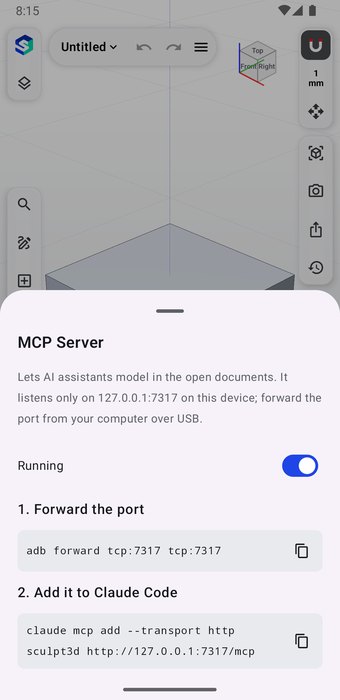
Security: the server listens only on 127.0.0.1 and refuses browser requests from other origins. Nothing leaves your machine.
Test it from a terminal
curl -s http://127.0.0.1:7317/mcp -H 'Content-Type: application/json' \
  -d '{"jsonrpc":"2.0","id":1,"method":"tools/call","params":{"name":"list_documents","arguments":{}}}'
How it works
- Units are millimetres and degrees. Z is up. Planes:
xy= Top (normal +Z),xz= Front (normal −Y),yz= Right (normal +X). - Tools act on the active document (first in
list_documents). - Every modeling tool appends a step to the parametric history and is trial-run first: if it fails, you get the error and the model is unchanged.
- Modeling tools reply with the affected
bodies(id, volume, area, size, bounding box), the newfeatures(step ids), andnew_bodies. - All modeling tools accept two optional extras:
name— the step's name in the History, andgroup— put new bodies in a body group. - Editing tools return an error while a sketch or tool panel is open in the app. Finish or cancel it first.
- Face/edge indices come from
get_body_topologyand change when the body changes.
Typical loop: get_model → model (sketch_extrude, fillet_edges, …) → get_body_topology when you need faces/edges → screenshot to check → update_feature to tweak → export_model.
Quick start prompts
You rarely call tools by hand — you describe the part and the assistant picks the tools. Some prompts that work well:
- "Make a 90×60×10 mm mounting plate with four M8 clearance holes 10 mm from the corners and 3 mm fillets."
- "Revolve a coffee cup 80 mm tall with 3 mm walls, then add a handle."
- "Build a hilly 200 mm terrain with a river and scatter 40 trees on it; make it look nice and screenshot it."
- "Make the width a variable so I can change it later."
- "Export it as STEP and STL to my Downloads."
Tip: ask the assistant to name each step and take a screenshot after each major step.
Tool index
| Group | Tools |
|---|---|
| Documents | list_documents, select_document, new_document |
| Inspect | get_model, get_body_topology, measure |
| Create | add_primitive, sketch_extrude, sketch_revolve, loft, create_terrain, import_file |
| Modify | boolean, fillet_edges, chamfer_edges, shell_body, push_pull_face |
| Transform & copy | transform_body, mirror_body, pattern_body, scale_body, scatter_body, duplicate_body, delete_body |
| History & variables | update_feature, delete_feature, suppress_feature, rename_feature, set_variable, undo, redo |
| Organize bodies | rename_body, group_bodies, ungroup_bodies, rename_group |
| Appearance & view | set_appearance, set_environment, set_view, screenshot |
| Output | export_model |
Documents
list_documents
Lists the open Sculpt3D documents. The first one is active; tools act on it.
Use it to: See which documents are open and which one is active before you change anything.
Read-only — never changes the model.
No parameters.
Example call
{
  "name": "list_documents",
  "arguments": {}
}
Reply
[
  {
    "active": true,
    "features": 1,
    "id": "A4CCC299-8188-434A-B1D4-784070D61195",
    "name": "Untitled"
  }
]
How to use
- The first document in the list is the active one; every other tool acts on it.
featuresis the number of history steps, a quick way to tell documents apart when they share a name.
Ask your assistant: "Which Sculpt3D documents are open?"
select_document
Makes the document with this id (from list_documents) the active one.
Use it to: Switch which open document the tools act on.
| Parameter | Type | Required | Description |
|---|---|---|---|
id | string | yes | Document id |
Example call
{
  "name": "select_document",
  "arguments": {
    "id": "A4CCC299-8188-434A-B1D4-784070D61195"
  }
}
Reply
"Active document: Untitled"
How to use
- Get the
idfromlist_documents. - The app brings that window forward.
Ask your assistant: "Switch to the bracket document."
new_document
Opens a new, empty Sculpt3D document window and makes it active.
Use it to: Start a clean model without touching the documents you have open.
No parameters.
Example call
{
  "name": "new_document",
  "arguments": {}
}
How to use
- Opens a new window and makes it active.
- Returns the new document's
id— keep it if you will switch between documents.
Ask your assistant: "Open a new Sculpt3D document for a phone stand."
Inspect
get_model
The active document's parametric history (features with their editable parameters), its bodies with volume, area and bounding box, and the project variables.
Use it to: Read the full state: history steps with their editable parameters, bodies with volume/area/bounding box, groups and variables.
Read-only — never changes the model.
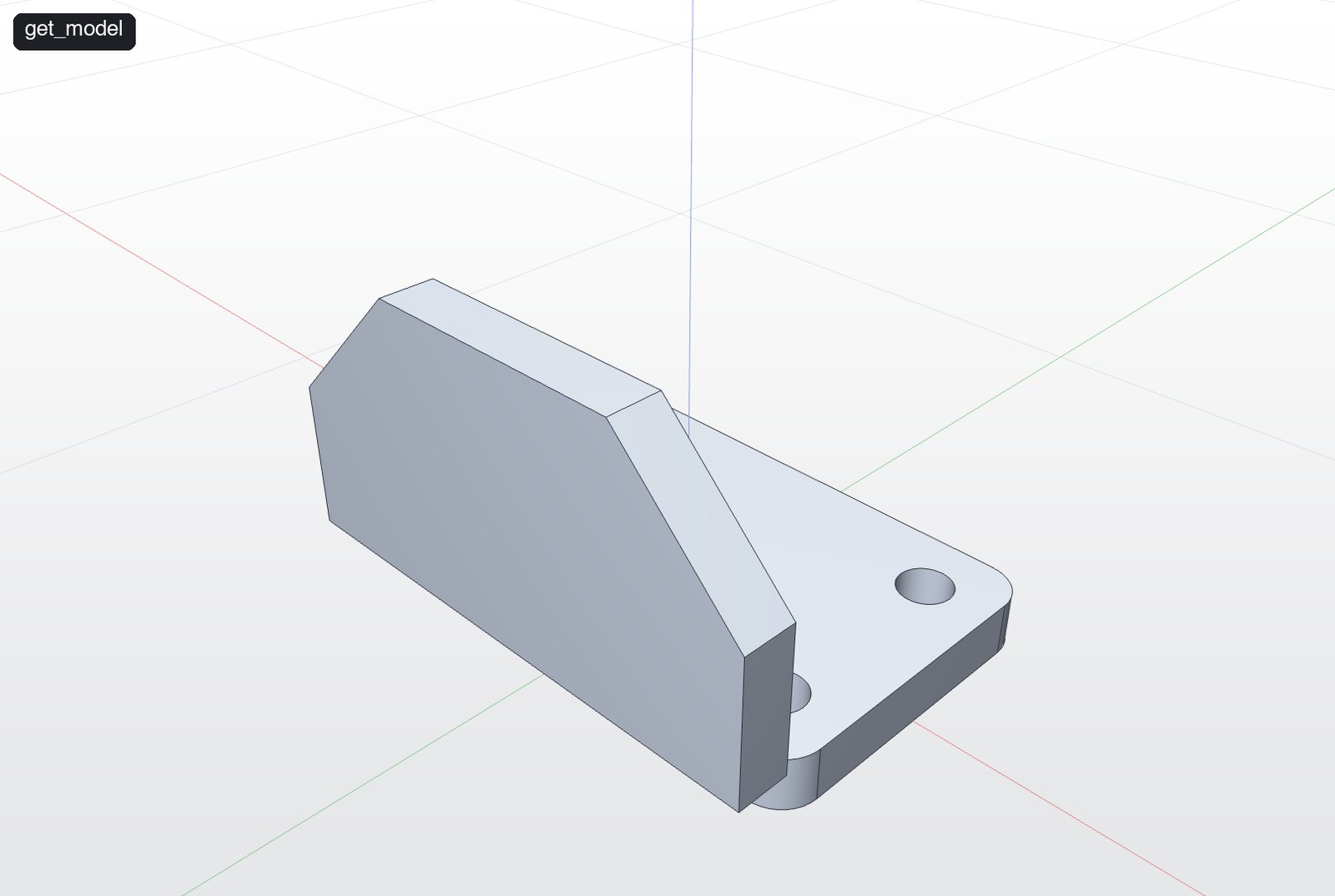
No parameters.
Example call
{
  "name": "get_model",
  "arguments": {}
}
Reply
{
  "bodies": [
    {
      "area": 18022.46,
      "bbox_max": [40.02, 25.02, 50.02],
      "bbox_min": [-40.02, -33.02, -0.02],
      "edges": 55,
      "faces": 22,
      "id": 1,
      "name": "Body 1",
      "size": [80.05, 58.05, 50.05],
      "volume": 53824.28
    }
  ],
  "document": "Untitled",
  "features": [
    {
      "id": "108563FD-5541-45FC-A78E-86B7A76C1908",
      "index": 0,
      "parameters": [
        {
          "id": 0,
          "label": "Distance",
          "unit": "mm",
          "value": 8
        }
      ],
      "title": "Base plate",
      "type": "Extrude"
    },
    {
      "…": "1 more"
    }
  ],
  "groups": [],
  "units": "mm",
  "variables": []
}
How to use
- Use the feature
idand parameterlabel(orid) from here withupdate_feature. - Call it after a long session to re-orient: body ids and sizes are all here.
Ask your assistant: "Summarise the current model and its history."
get_body_topology
Faces and edges of one body, with the indices that fillet_edges, chamfer_edges, shell_body, measure and sketch planes on faces take.
Use it to: Find face and edge indices before filleting, chamfering, shelling, push/pulling, measuring or sketching on a face.
Read-only — never changes the model.
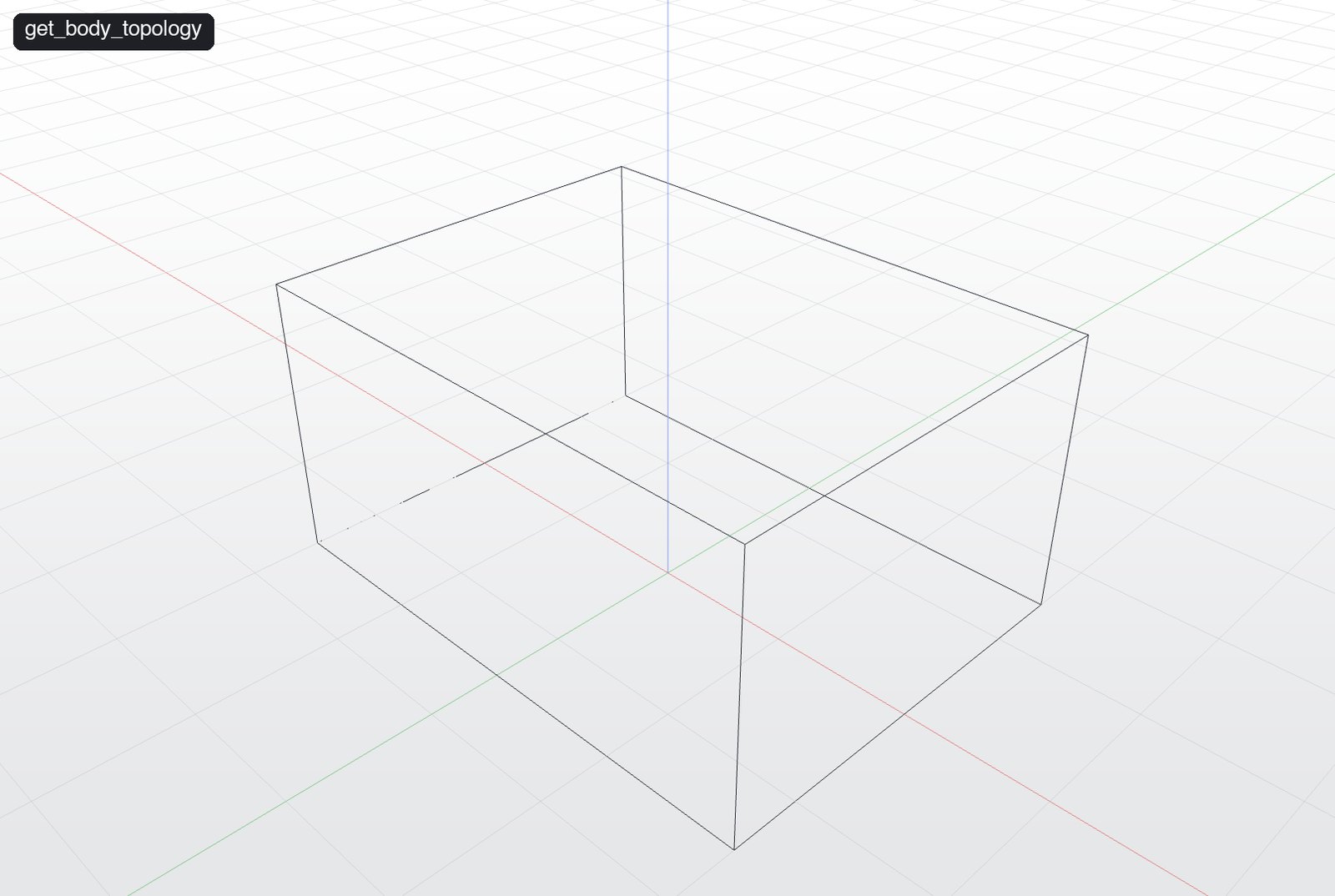
| Parameter | Type | Required | Description |
|---|---|---|---|
body | integer | yes | Body id |
Example call
{
  "name": "get_body_topology",
  "arguments": {
    "body": 1
  }
}
Reply
{
  "body": 1,
  "faces": [
    {
      "area": 600,
      "centroid": [-20, 0, 10],
      "index": 0,
      "normal": [-1, 0, 0],
      "type": "plane"
    },
    {
      "area": 600,
      "centroid": [20, 0, 10],
      "index": 1,
      "normal": [1, 0, 0],
      "type": "plane"
    },
    "…"
  ],
  "edges": [
    {
      "end": [-20, -15, 20],
      "index": 0,
      "length": 20,
      "start": [-20, -15, 0],
      "type": "line"
    },
    {
      "end": [-20, 15, 20],
      "index": 1,
      "length": 30,
      "start": [-20, -15, 20],
      "type": "line"
    },
    "…"
  ]
}
How to use
- Faces have
normal,centroid,areaandtype(plane, cylinder…). Pick the top face as the planar face with normal[0,0,1]. - Edges have
start,end,lengthandtype. E.g. top edges of a 20 mm-tall box have both ends at z = 20. - Indices change when the body changes — re-read topology after each modeling step.
Ask your assistant: "List the faces of body 1 and tell me which one is the top."
measure
Measures one entity (volume/area/length/radius) or the distance and angle between two. An entity is {body} or {body, face} or {body, edge}.
Use it to: Get the volume/area/length/radius of one entity, or the distance and angle between two.
Read-only — never changes the model.
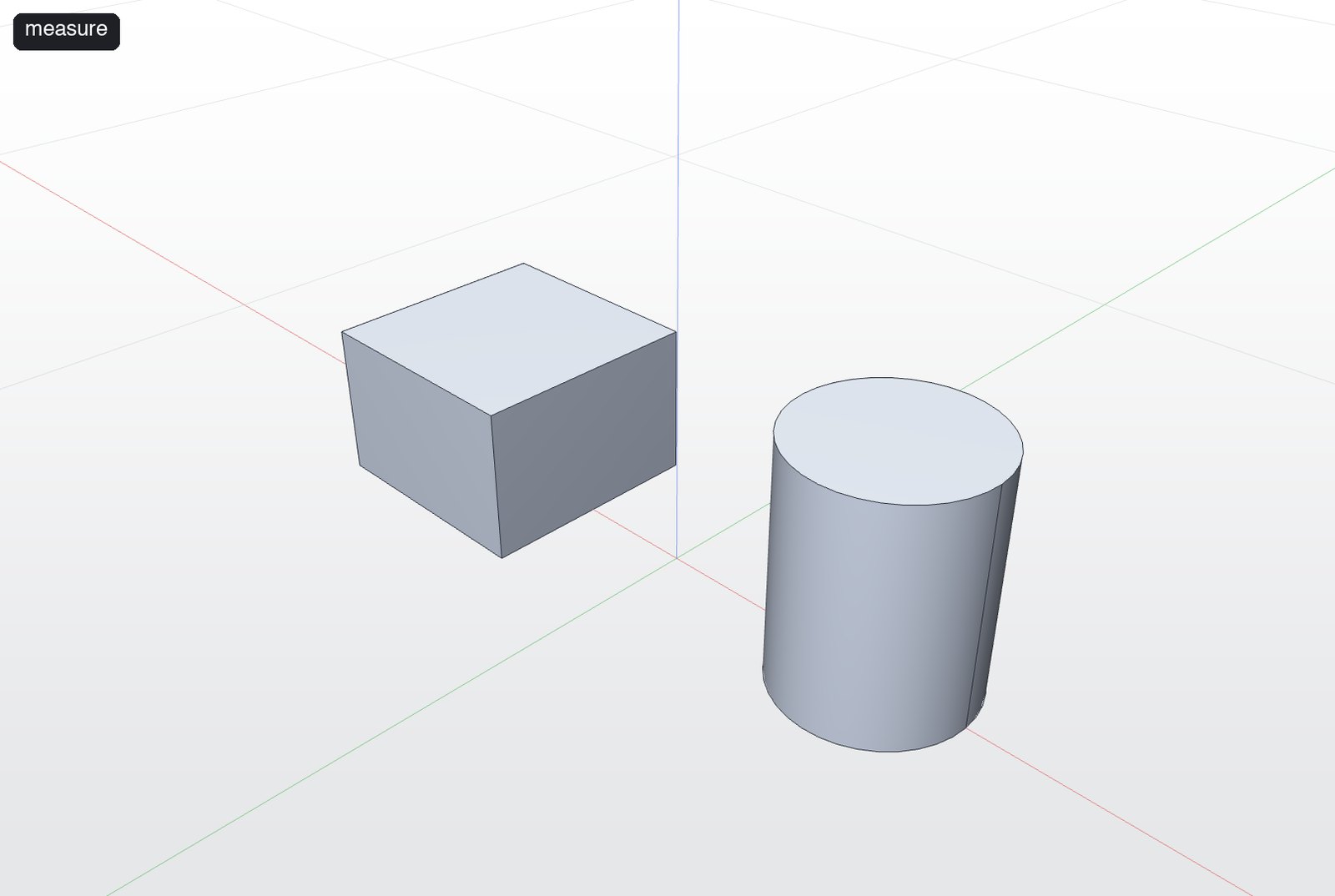
| Parameter | Type | Required | Description |
|---|---|---|---|
a | object | yes | Entity {body, face?, edge?} |
b | object | Entity {body, face?, edge?} (optional second entity) |
Example call
{
  "name": "measure",
  "arguments": {
    "a": {
      "body": 1
    },
    "b": {
      "body": 2
    }
  }
}
Reply
{
  "one": {
    "area": 4200,
    "surface_area": 4200,
    "volume": 18000
  },
  "two": {
    "closest_points": [
      [-15, 0, 0],
      [18, 0, 0]
    ],
    "distance": 33
  }
}
How to use
- An entity is
{body},{body, face}or{body, edge}. - Read-only: it never changes the model.
Ask your assistant: "How far apart are the block and the cylinder?"
Create
add_primitive
Adds a solid primitive as a new body. Its base sits on position (default origin), centred in X and Y, rising along +Z. Sizes in mm: box width (X), depth (Y), height (Z); cylinder radius, height; sphere radius; cone radius (bottom), top_radius, height; torus major_radius, minor_radius.
Use it to: Quick solids: box, cylinder, sphere, cone, torus.
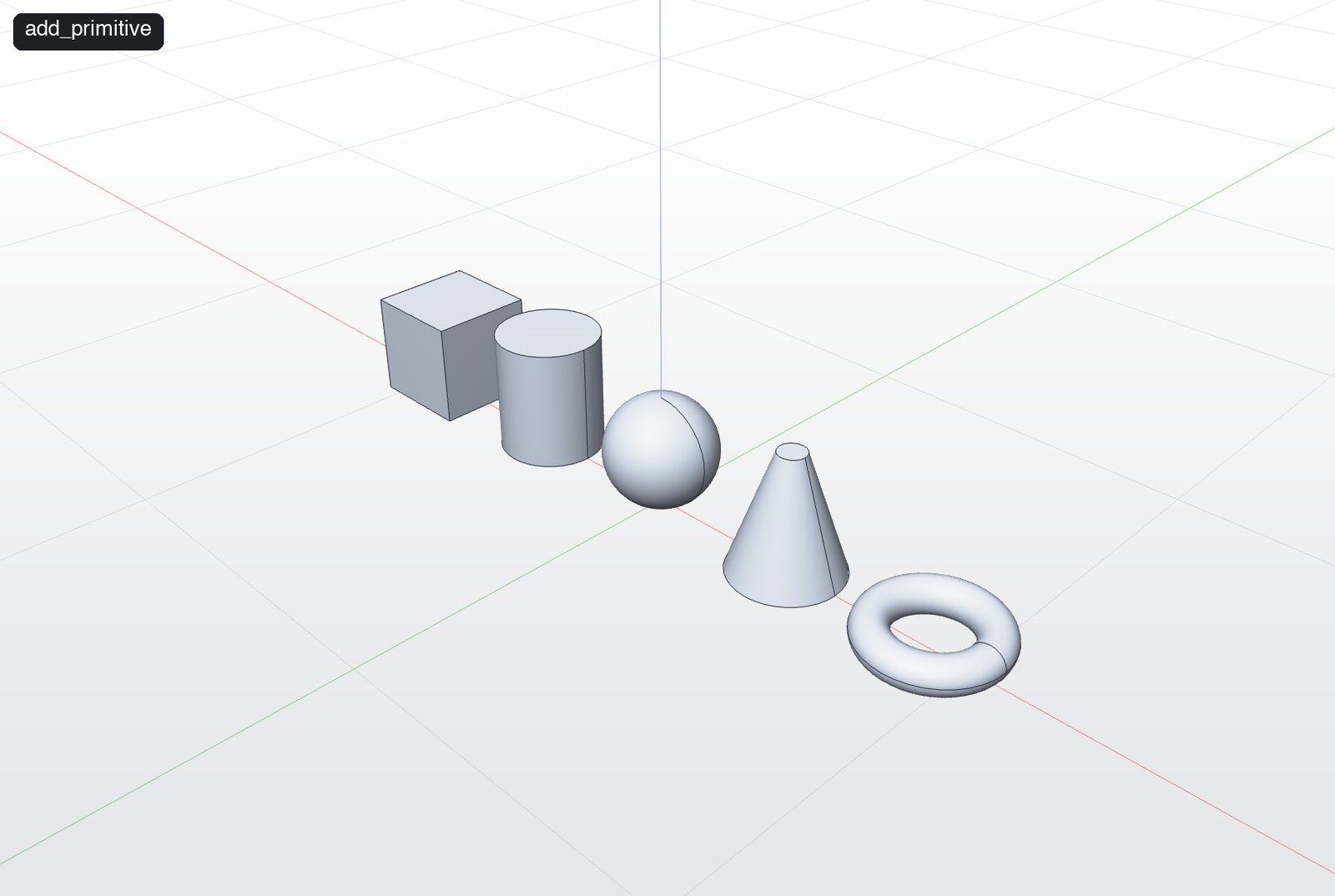
| Parameter | Type | Required | Description |
|---|---|---|---|
kind | box | cylinder | sphere | cone | torus | yes | Primitive |
depth | number | Size in mm (see notes) | |
height | number | Size in mm (see notes) | |
top_radius | number | Size in mm (see notes) | |
major_radius | number | Size in mm (see notes) | |
radius | number | Size in mm (see notes) | |
position | number[] | Base centre [x, y, z] | |
width | number | Size in mm (see notes) | |
minor_radius | number | Size in mm (see notes) | |
name, group | string | Step name in the History; body group for new bodies |
Example call
{
  "name": "add_primitive",
  "arguments": {
    "kind": "cylinder",
    "radius": 15,
    "height": 35,
    "position": [
      45,
      0,
      0
    ],
    "name": "Post"
  }
}
Reply
{
  "bodies": [
    {
      "area": 5400,
      "bbox_max": [-75, 15, 30],
      "bbox_min": [-105, -15, 0],
      "edges": 12,
      "faces": 6,
      "id": 1,
      "name": "Body 1",
      "size": [30, 30, 30],
      "volume": 27000
    }
  ],
  "features": [
    {
      "id": "4DFA4C90-176C-434E-8C35-FB16D79E7662",
      "title": "Box"
    }
  ],
  "new_bodies": [1]
}
How to use
- The base sits on
position(default origin), centred in X and Y, rising along +Z. - Sizes: box
width(X)depth(Y)height(Z); cylinderradius,height; sphereradius; coneradius,top_radius,height; torusmajor_radius,minor_radius. - Every modeling tool also takes
name(shown in the history) andgroup(puts new bodies in a body group).
Ask your assistant: "Add a 30 mm cube, a cylinder, a sphere, a cone and a torus in a row."
sketch_extrude
Draws closed shapes on a sketch plane and extrudes them along the plane normal. Shape coordinates are 2D in the plane (u along its X direction, v along its Y). Planes: xy (normal +Z), xz (normal -Y), yz (normal +X); a custom {origin, normal, x_dir}; or a planar face of a body via face, whose sketch origin is the face centroid. For new_body and join, distance runs along the normal (negative goes the other way); for cut it is the depth into the material, against the normal, so a cut sketched on a top face with distance 5 removes 5 mm downward. Shapes inside other shapes become holes. mode: new_body, join or cut (join/cut need target_body unless there is only one body).
Use it to: The main way to make real parts: draw closed 2D shapes and extrude them into a new body, onto a body (join) or into it (cut).
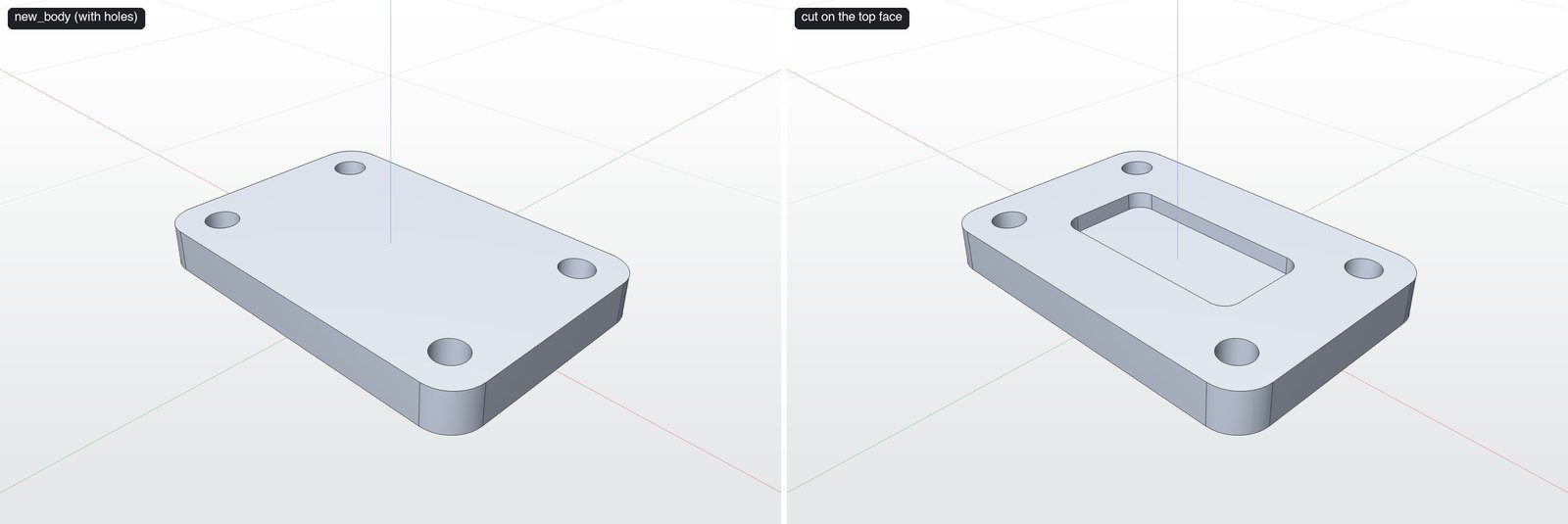
| Parameter | Type | Required | Description |
|---|---|---|---|
shapes | object[] | yes | Closed 2D shapes in plane coordinates (see notes) |
distance | number | yes | Extrusion distance in mm (for cut: depth into the material) |
plane | string | object | "xy", "xz", "yz", or {origin, normal, x_dir} | |
offset | number | Moves the sketch plane along its normal, mm | |
face | object | Sketch on a planar face instead of a plane: {body, face} | |
mode | new_body | join | cut | new_body, join or cut | |
target_body | integer | Body to join to or cut from | |
name, group | string | Step name in the History; body group for new bodies |
Example call
{
  "name": "sketch_extrude",
  "arguments": {
    "plane": "xy",
    "distance": 10,
    "name": "Plate",
    "shapes": [
      {
        "type": "rounded_rectangle",
        "x": 0,
        "y": 0,
        "width": 90,
        "height": 60,
        "centered": true,
        "radius": 8
      },
      {
        "type": "circle",
        "cx": -35,
        "cy": -20,
        "radius": 4
      },
      {
        "type": "circle",
        "cx": 35,
        "cy": -20,
        "radius": 4
      },
      {
        "type": "circle",
        "cx": -35,
        "cy": 20,
        "radius": 4
      },
      {
        "type": "circle",
        "cx": 35,
        "cy": 20,
        "radius": 4
      }
    ]
  }
}
Reply
{
  "bodies": [
    {
      "area": 14155.96,
      "bbox_max": [45.03, 30.03, 10.03],
      "bbox_min": [-45.03, -30.03, -0.03],
      "edges": 36,
      "faces": 14,
      "id": 1,
      "name": "Body 1",
      "size": [90.06, 60.06, 10.06],
      "volume": 51440
    }
  ],
  "features": [
    {
      "id": "F37E0266-FFED-4AE4-9985-58D17C555EFF",
      "title": "Plate"
    }
  ],
  "new_bodies": [1]
}
How to use
- Planes:
xy(normal +Z),xz(normal −Y),yz(normal +X), a custom{origin, normal, x_dir}, or a body face viaface: {body, face}(origin at the face centroid).offsetslides the plane along its normal. - Shapes (2D, mm,
ualong the plane's X,valong its Y):rectangle {x, y, width, height, centered?},rounded_rectangle(+radius),circle {cx, cy, radius},polygon {cx, cy, radius, sides},polyline {points}(auto-closed),spline {points}(smooth closed curve),ellipse {cx, cy, rx, ry, rotation?}. - Shapes inside other shapes become holes — the four circles above are bolt holes.
- Modes:
new_body(default),join,cut. Join/cut needtarget_bodywhen there is more than one body. Forcut,distanceis the depth into the material: a cut sketched on a top face with distance 4 removes 4 mm downward. - Second step in the picture:
{"face": {"body": 1, "face": <top>}, "mode": "cut", "distance": 4, "shapes": [{"type": "rounded_rectangle", … 50×24 r4}]}.
Ask your assistant: "Make a 90×60×10 mm plate with rounded corners, four 8 mm bolt holes, and a 4 mm deep pocket on top."
sketch_revolve
Draws closed shapes on a sketch plane (as in sketch_extrude) and revolves them about the plane's u or v axis through its origin. The profile must not cross the axis.
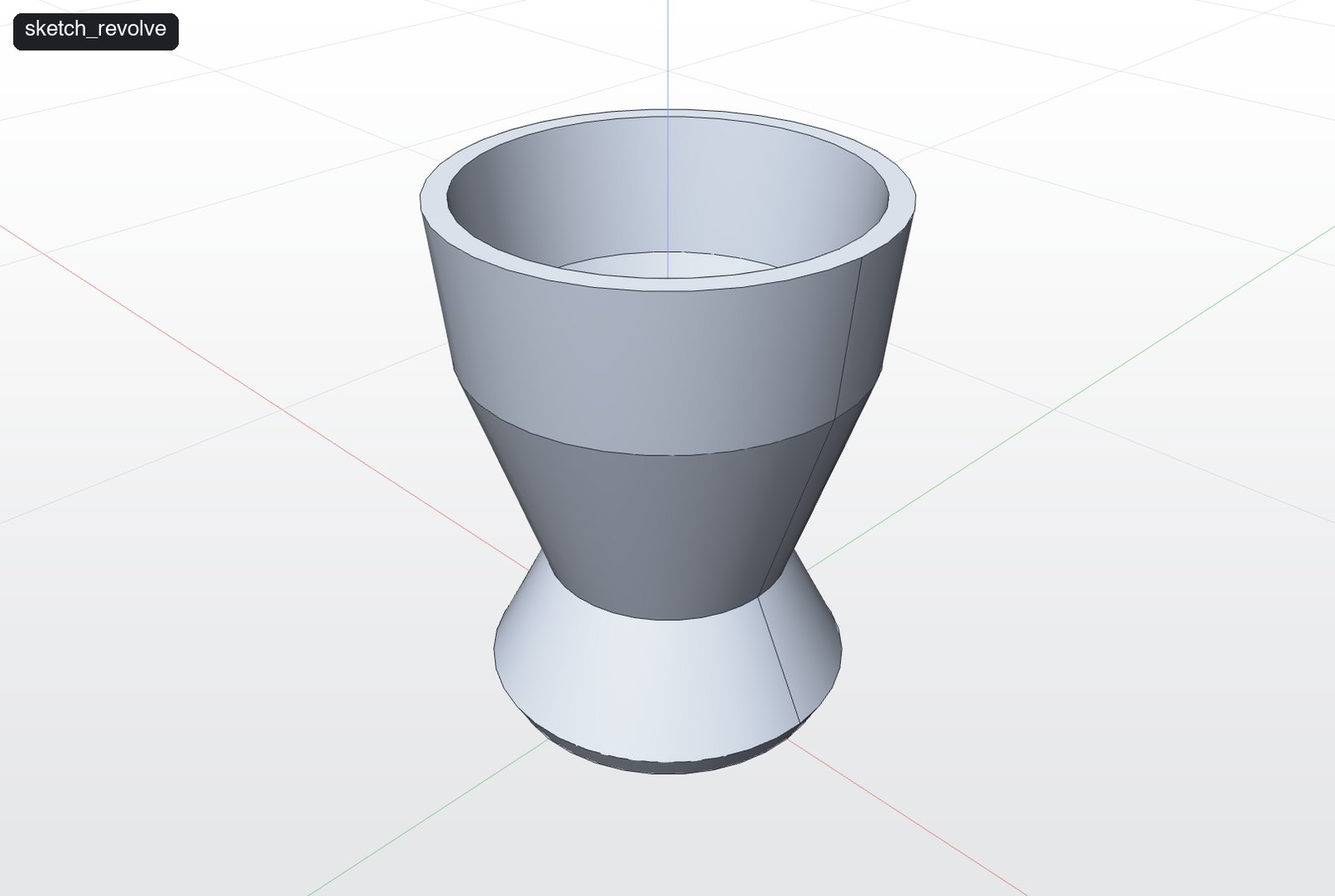
Use it to: Turned parts: vases, knobs, wheels, shafts, bottles.
| Parameter | Type | Required | Description |
|---|---|---|---|
shapes | object[] | yes | Closed 2D shapes in plane coordinates (see notes) |
axis | u | v | yes | Sketch axis to revolve around |
target_body | integer | Body to join to or cut from | |
plane | string | object | "xy", "xz", "yz", or {origin, normal, x_dir} | |
face | object | Sketch on a planar face instead of a plane: {body, face} | |
mode | new_body | join | cut | new_body, join or cut | |
offset | number | Moves the sketch plane along its normal, mm | |
angle | number | Degrees, default 360 | |
name, group | string | Step name in the History; body group for new bodies |
Example call
{
  "name": "sketch_revolve",
  "arguments": {
    "plane": "xz",
    "axis": "v",
    "name": "Vase",
    "shapes": [
      {
        "type": "polyline",
        "points": [
          [
            0,
            0
          ],
          [
            22,
            0
          ],
          [
            24,
            4
          ],
          [
            16,
            20
          ],
          [
            26,
            50
          ],
          [
            28,
            70
          ],
          [
            25,
            70
          ],
          [
            23,
            52
          ],
          [
            13,
            22
          ],
          [
            0,
            5
          ]
        ]
      }
    ]
  }
}
Reply
{
  "bodies": [
    {
      "area": 19678.16,
      "bbox_max": [28.26, 28.18, 70.26],
      "bbox_min": [-28.26, -28.18, -0.26],
      "edges": 16,
      "faces": 9,
      "id": 1,
      "name": "Body 1",
      "size": [56.52, 56.36, 70.52],
      "volume": 48278.95
    }
  ],
  "features": [
    {
      "id": "E974CE58-C52E-47B4-B309-DBBBA883B7FE",
      "title": "Vase"
    }
  ],
  "new_bodies": [1]
}
How to use
- Draw a half profile on one side of the axis. On
xz,uis X andvis Z, soaxis: "v"spins around the world Z axis. - The profile may touch the axis but must not cross it.
angledefaults to 360°; use less for a partial revolve.
Ask your assistant: "Revolve a 70 mm tall vase with a flared lip."
loft
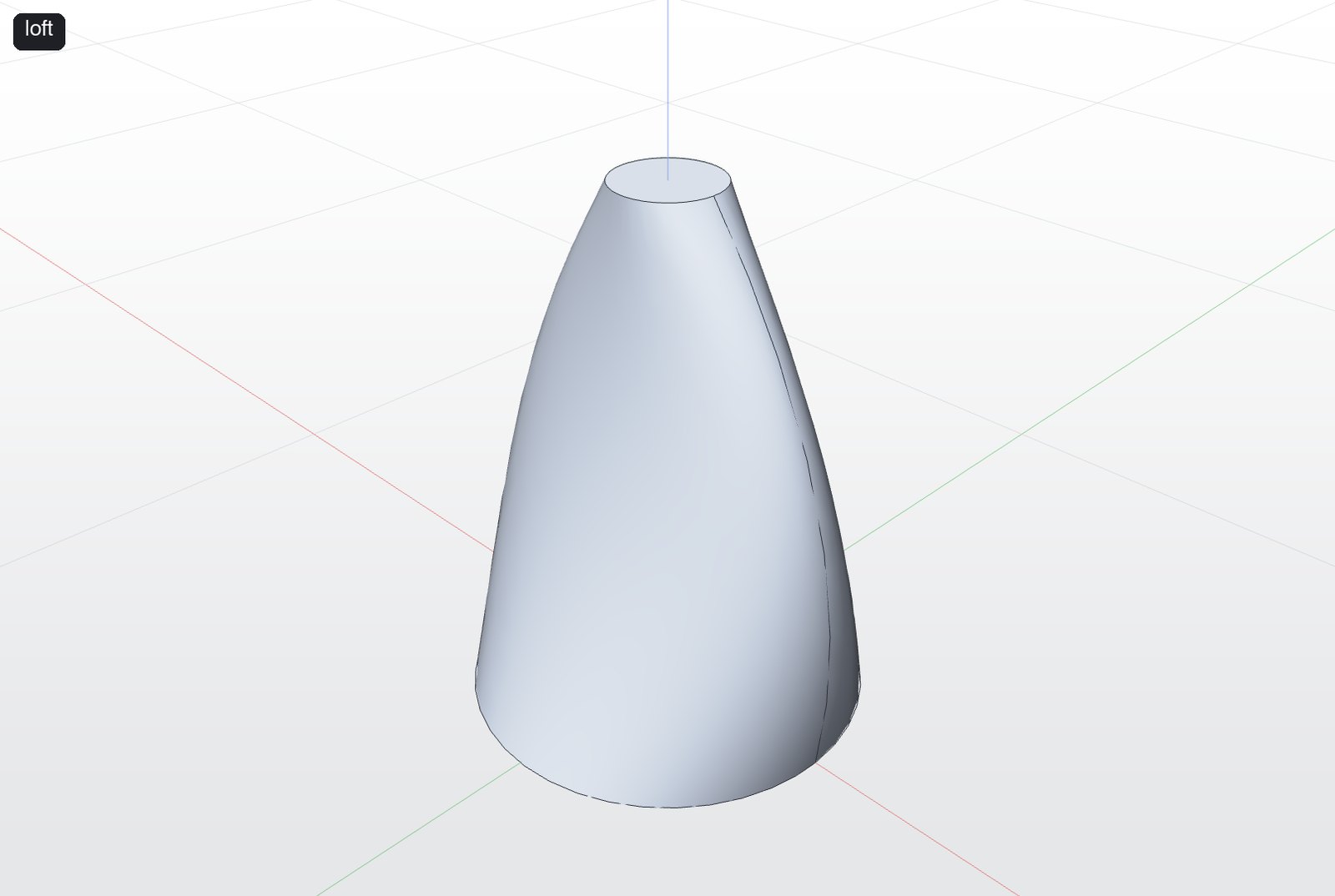
Makes a smooth solid through two or more cross-sections, like a fairing, tank, seat or hull. Each section is {plane, offset?, shapes} with exactly one closed shape (as in sketch_extrude); spline and ellipse shapes give the smoothest surfaces. Sections run in the order given, and should start at matching points and run the same way round so the surface doesn't twist. The section sketches are kept in the history, hidden. mode: new_body (default), join or cut.
Use it to: Smooth, organic shapes through cross-sections: fairings, tanks, hulls, seats, bottles.
| Parameter | Type | Required | Description |
|---|---|---|---|
sections | object[] | yes | Cross-sections in order: [{plane, offset?, shapes: [one closed shape]}] |
target_body | integer | Body to join to or cut from | |
mode | new_body | join | cut | new_body, join or cut | |
name, group | string | Step name in the History; body group for new bodies |
Example call
{
  "name": "loft",
  "arguments": {
    "name": "Fairing",
    "sections": [
      {
        "plane": "xy",
        "offset": 0,
        "shapes": [
          {
            "type": "circle",
            "cx": 0,
            "cy": 0,
            "radius": 30
          }
        ]
      },
      {
        "plane": "xy",
        "offset": 40,
        "shapes": [
          {
            "type": "ellipse",
            "cx": 0,
            "cy": 0,
            "rx": 28,
            "ry": 14
          }
        ]
      },
      {
        "plane": "xy",
        "offset": 80,
        "shapes": [
          {
            "type": "circle",
            "cx": 0,
            "cy": 0,
            "radius": 8
          }
        ]
      }
    ]
  }
}
Reply
{
  "bodies": [
    {
      "area": 13834.98,
      "bbox_max": [31.46, 30.22, 80.24],
      "bbox_min": [-31.45, -30.19, -0.24],
      "edges": 3,
      "faces": 3,
      "id": 1,
      "name": "Body 1",
      "size": [62.91, 60.41, 80.49],
      "volume": 107507.76
    }
  ],
  "features": [
    {
      "id": "8E480B4D-4187-4B9E-82BC-C3F3121AD27E",
      "title": "Fairing"
    }
  ],
  "new_bodies": [1]
}
How to use
- Each section is
{plane, offset?, shapes}with exactly one closed shape. - Sections run in the order given. Start them at matching points and run them the same way round, or the surface twists.
- Spline and ellipse shapes give the smoothest surfaces. The section sketches are kept (hidden) in the history.
Ask your assistant: "Loft a fairing from a 60 mm circle through an ellipse to a 16 mm circle over 80 mm."
create_terrain
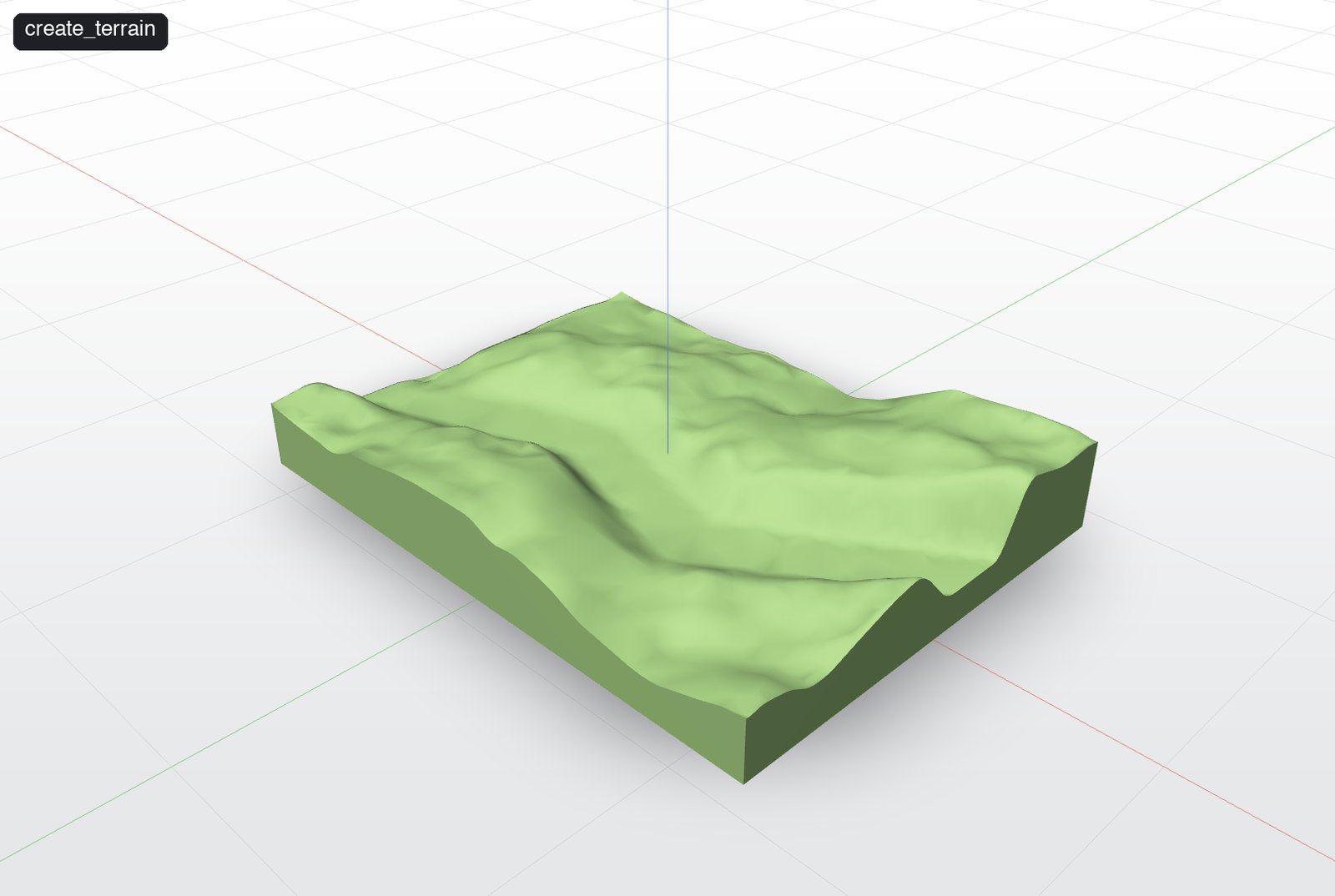
Adds a smooth landscape solid: a surface fitted through a grid of heights, with vertical sides and a flat bottom at center z. Relief comes from any mix of: heights (rows of mm above the base, first row at -Y), image_path (greyscale height map, white high, scaled to image_height mm), noise (rolling hills), then hills (domes added on top), terraces (flat steps), and finally channels (river or path beds carved along polylines to bed mm above the base, easing back up over bank mm). Coordinates are world XY in mm. Returns the new body.
Use it to: Landscapes and dioramas: rolling hills, river beds, terraces, or a height-map image.
| Parameter | Type | Required | Description |
|---|---|---|---|
terraces | object | {count, softness 0–1}: flat steps | |
noise | object | {seed, height (mm, default 40), scale (hill size as a fraction of the terrain, default 0.45), octaves (4), roughness (0.5)} | |
heights | array[] | Rows of heights in mm; resampled to the grid | |
channels | object[] | [{points: [[x, y], …], width, bed, bank}] carved beds, mm | |
image_path | string | Absolute path to a greyscale height map image | |
resolution | integer | Grid samples along the longer side, 8–129 (default 48) | |
base_thickness | number | Solid under the lowest relief, mm (default 10) | |
image_height | number | Relief of white in the image, mm (default 40) | |
width | number | Size along X, mm (default 200) | |
center | number[] | Centre of the bottom face, default [0, 0, 0] | |
depth | number | Size along Y, mm (default 200) | |
hills | object[] | [{x, y, radius, height}] smooth domes, mm | |
name, group | string | Step name in the History; body group for new bodies |
Example call
{
  "name": "create_terrain",
  "arguments": {
    "name": "Hills",
    "width": 240,
    "depth": 180,
    "noise": {
      "seed": 4,
      "height": 30
    },
    "channels": [
      {
        "points": [
          [
            -120,
            -40
          ],
          [
            -30,
            -10
          ],
          [
            40,
            -30
          ],
          [
            120,
            20
          ]
        ],
        "width": 22,
        "bed": 4,
        "bank": 18
      }
    ]
  }
}
Reply
{
  "bodies": [
    {
      "area": 108074.06,
      "bbox_max": [120.75, 90.75, 40.35],
      "bbox_min": [-120.75, -90.75, -0.75],
      "edges": 12,
      "faces": 6,
      "id": 1,
      "name": "Body 1",
      "size": [241.49, 181.49, 41.1],
      "volume": 912955.97
    }
  ],
  "features": [
    {
      "id": "BF0C1BF7-2B73-4BEE-8C0D-26FD709F538A",
      "title": "Hills"
    }
  ],
  "new_bodies": [1]
}
How to use
- Relief sources combine in order:
heightsgrid →image_path(greyscale, white high, scaled toimage_height) →noise→hills→terraces→channels(carved beds). resolution8–129 trades smoothness for speed (default 48).base_thicknessis the solid under the lowest point.- Pair with
scatter_bodyfor trees and rocks, andset_appearancefor grass colour.
Ask your assistant: "Make a 240×180 mm hilly terrain with a river channel running across it."
import_file
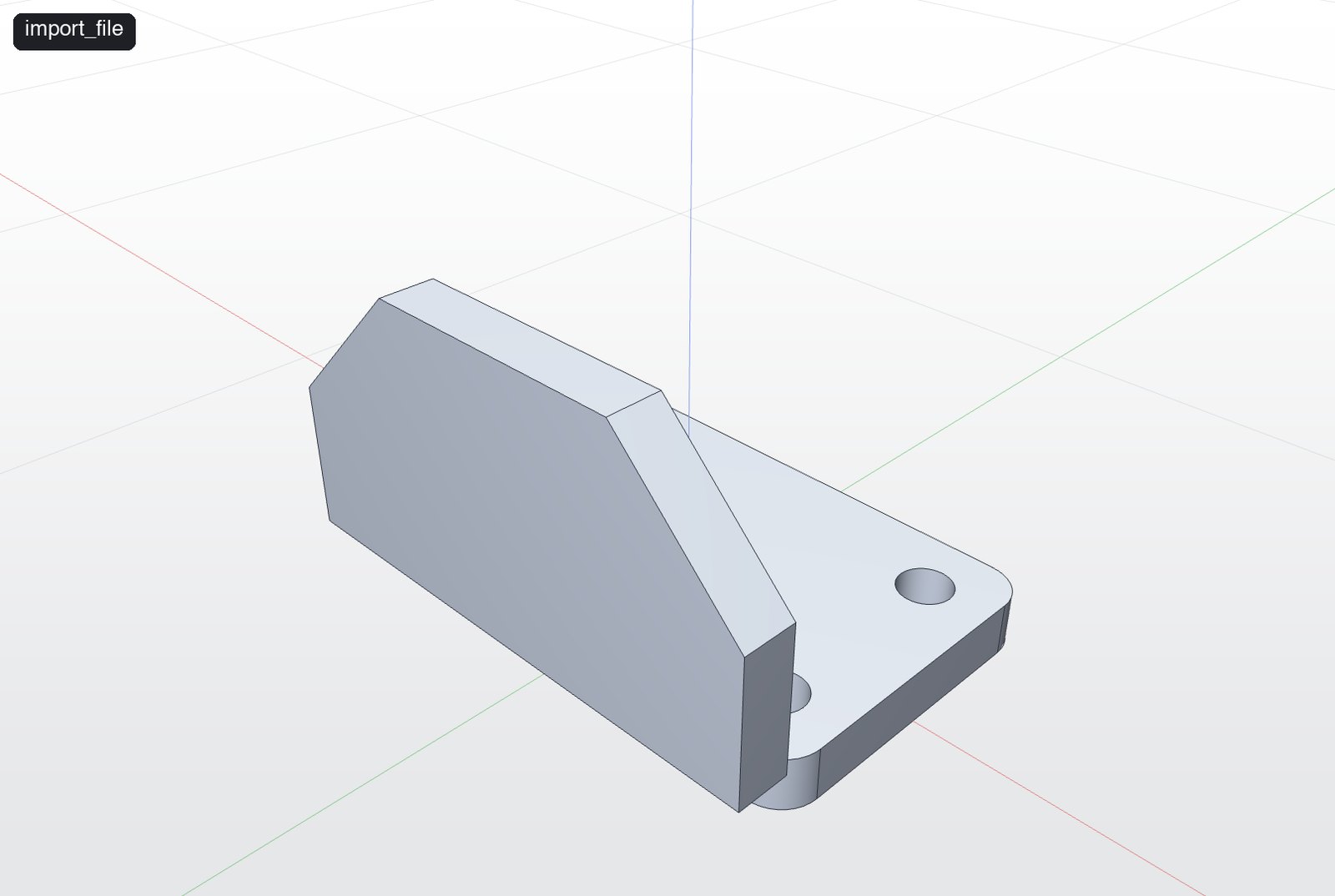
Imports a STEP, IGES or BREP file from an absolute path as new bodies.
Use it to: Bring existing CAD (STEP, IGES, BREP) into the active document.
| Parameter | Type | Required | Description |
|---|---|---|---|
path | string | yes | Absolute file path |
Example call
{
  "name": "import_file",
  "arguments": {
    "path": "/Users/me/Downloads/bracket.step"
  }
}
Reply
{
  "new_bodies": [
    {
      "area": 7684.55,
      "bbox_max": [40, -25, 50],
      "bbox_min": [-40, -33, 8],
      "edges": 20,
      "faces": 8,
      "id": 1,
      "name": "Body 1",
      "size": [80, 8, 42],
      "volume": 23680
    },
    {
      "area": 10337.91,
      "bbox_max": [40.02, 25.02, 8.02],
      "bbox_min": [-40.02, -25.02, -0.02],
      "edges": 36,
      "faces": 14,
      "id": 2,
      "name": "Body 2",
      "size": [80.05, 50.05, 8.05],
      "volume": 30144.28
    }
  ]
}
How to use
- The path must be absolute.
- Each solid in the file becomes a new body you can modify like any other.
Ask your assistant: "Import ~/Downloads/bracket.step."
Modify
boolean
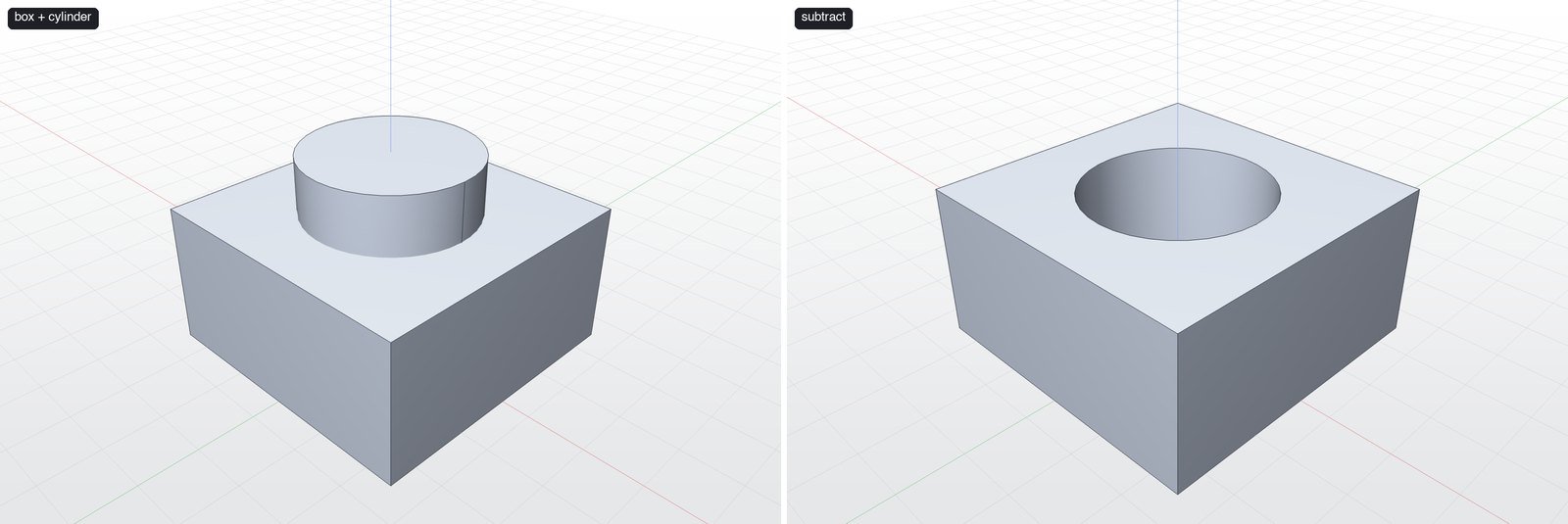
Union, subtract or intersect two bodies. The result keeps target_body's id; tool_body is consumed.
Use it to: Combine two bodies: union, subtract (cut one from the other) or intersect (keep the overlap).
| Parameter | Type | Required | Description |
|---|---|---|---|
operation | union | subtract | intersect | yes | Boolean operation |
target_body | integer | yes | Body that is kept |
tool_body | integer | yes | Body that is added, removed or intersected |
name, group | string | Step name in the History; body group for new bodies |
Example call
{
  "name": "boolean",
  "arguments": {
    "operation": "subtract",
    "target_body": 1,
    "tool_body": 2
  }
}
Reply
{
  "bodies": [
    {
      "area": 10942.48,
      "bbox_max": [25.05, 25.05, 25.05],
      "bbox_min": [-25.05, -25.05, -0.05],
      "edges": 15,
      "faces": 7,
      "id": 1,
      "name": "Body 1",
      "size": [50.11, 50.11, 25.11],
      "volume": 44828.54
    }
  ],
  "features": [
    {
      "id": "9589BB80-DED3-4A87-BC6F-49740313B2CF",
      "title": "Subtract"
    }
  ],
  "new_bodies": []
}
How to use
- The result keeps
target_body's id;tool_bodyis consumed. - For holes and pockets,
sketch_extrudewithmode: cutis usually simpler. Usebooleanwhen the cutter is a 3D shape.
Ask your assistant: "Subtract the cylinder from the block."
fillet_edges
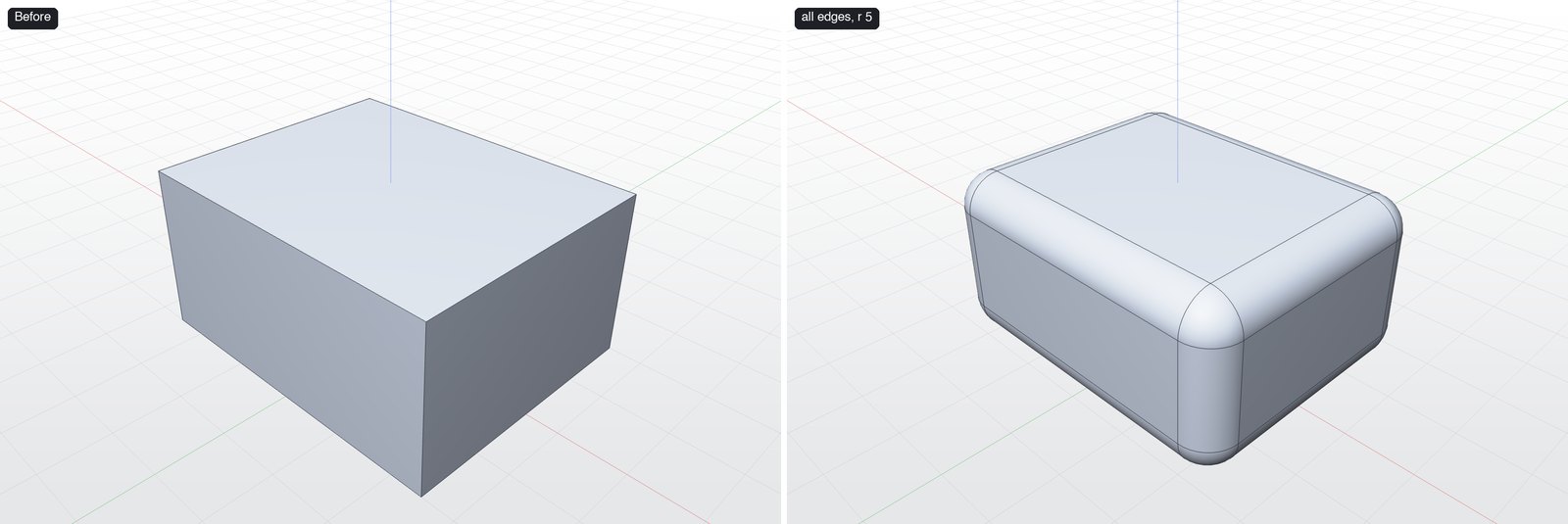
Rounds edges of a body. Pass edge indices from get_body_topology, or all: true.
Use it to: Round edges.
| Parameter | Type | Required | Description |
|---|---|---|---|
body | integer | yes | Body id |
radius | number | yes | Radius in mm |
edges | integer[] | Edge indices | |
all | boolean | Use every edge of the body | |
name, group | string | Step name in the History; body group for new bodies |
Example call
{
  "name": "fillet_edges",
  "arguments": {
    "body": 1,
    "all": true,
    "radius": 5
  }
}
Reply
{
  "bodies": [
    {
      "area": 7484.51,
      "bbox_max": [25.06, 20.06, 25.06],
      "bbox_min": [-25.06, -20.06, -0.06],
      "edges": 56,
      "faces": 26,
      "id": 1,
      "name": "Body 1",
      "size": [50.11, 40.11, 25.11],
      "volume": 47699.48
    }
  ],
  "features": [
    {
      "id": "06BC2278-E1D8-44B3-9F30-B0EF9531124D",
      "title": "Fillet (12)"
    }
  ],
  "new_bodies": []
}
How to use
- Pass
edges(indices fromget_body_topology) orall: true. - If a fillet fails, the radius is usually larger than an adjacent face allows — try smaller, or fillet fewer edges.
Ask your assistant: "Round every edge of the box with a 5 mm fillet."
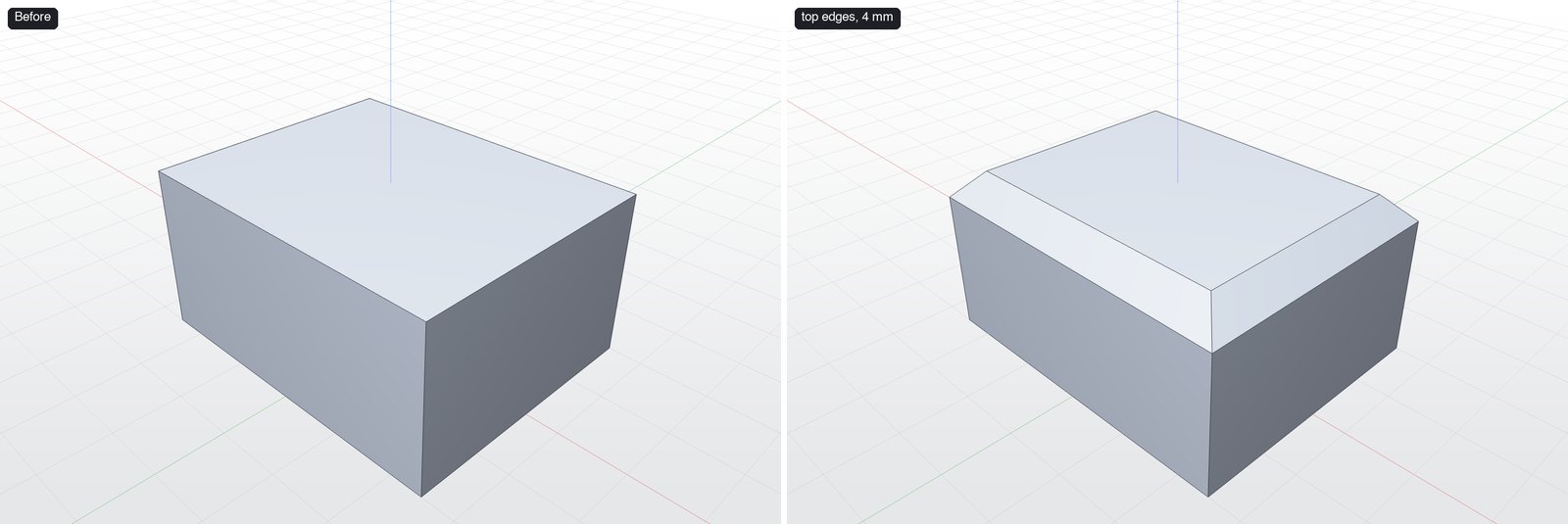
chamfer_edges
Bevels edges of a body. Pass edge indices from get_body_topology, or all: true.
Use it to: Bevel edges.
| Parameter | Type | Required | Description |
|---|---|---|---|
distance | number | yes | Chamfer distance in mm |
body | integer | yes | Body id |
all | boolean | Use every edge of the body | |
edges | integer[] | Edge indices | |
name, group | string | Step name in the History; body group for new bodies |
Example call
{
  "name": "chamfer_edges",
  "arguments": {
    "body": 1,
    "edges": [
      1,
      5,
      9,
      11
    ],
    "distance": 4
  }
}
Reply
{
  "bodies": [
    {
      "area": 8051.72,
      "bbox_max": [25, 20, 25],
      "bbox_min": [-25, -20, 0],
      "edges": 20,
      "faces": 10,
      "id": 1,
      "name": "Body 1",
      "size": [50, 40, 25],
      "volume": 48645.33
    }
  ],
  "features": [
    {
      "id": "F2DCEB81-BB41-489D-B6DD-CC366A729980",
      "title": "Chamfer (4)"
    }
  ],
  "new_bodies": []
}
How to use
- Same selection rules as
fillet_edges:edgesorall: true.
Ask your assistant: "Chamfer the top four edges by 4 mm."
shell_body
Hollows a body to the given wall thickness, removing the listed faces to leave openings.
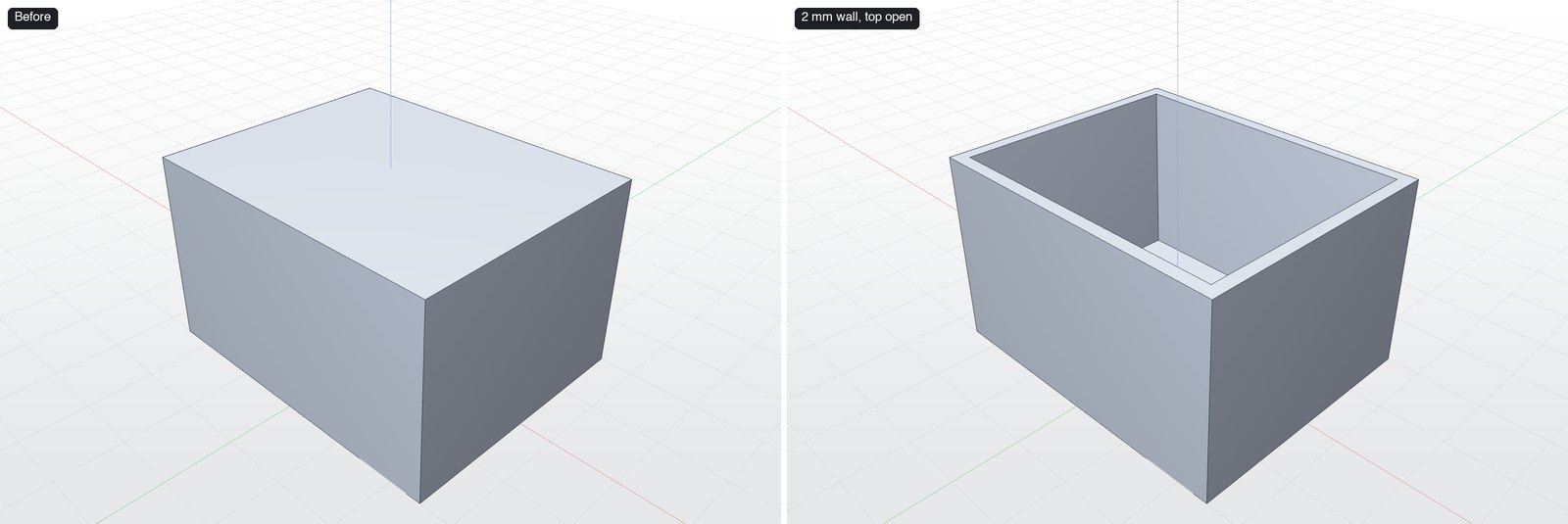
Use it to: Hollow a solid into a thin-walled part: enclosures, cups, boxes.
| Parameter | Type | Required | Description |
|---|---|---|---|
thickness | number | yes | Wall thickness in mm |
body | integer | yes | Body id |
faces | integer[] | Face indices to open | |
name, group | string | Step name in the History; body group for new bodies |
Example call
{
  "name": "shell_body",
  "arguments": {
    "body": 1,
    "thickness": 2,
    "faces": [
      5
    ]
  }
}
Reply
{
  "bodies": [
    {
      "area": 13992,
      "bbox_max": [25, 20, 30],
      "bbox_min": [-25, -20, 0],
      "edges": 24,
      "faces": 11,
      "id": 1,
      "name": "Body 1",
      "size": [50, 40, 30],
      "volume": 13632
    }
  ],
  "features": [
    {
      "id": "DB9D7449-A726-4EA6-8075-1AE8EA89B8EB",
      "title": "Shell"
    }
  ],
  "new_bodies": []
}
How to use
facesare removed to leave openings (here the top). With no faces the part is hollow and closed.- Shell after filleting outer edges for nice even walls.
Ask your assistant: "Shell the box to 2 mm walls with the top open."
push_pull_face
Moves a planar face along its normal, adding material (positive) or removing it (negative).
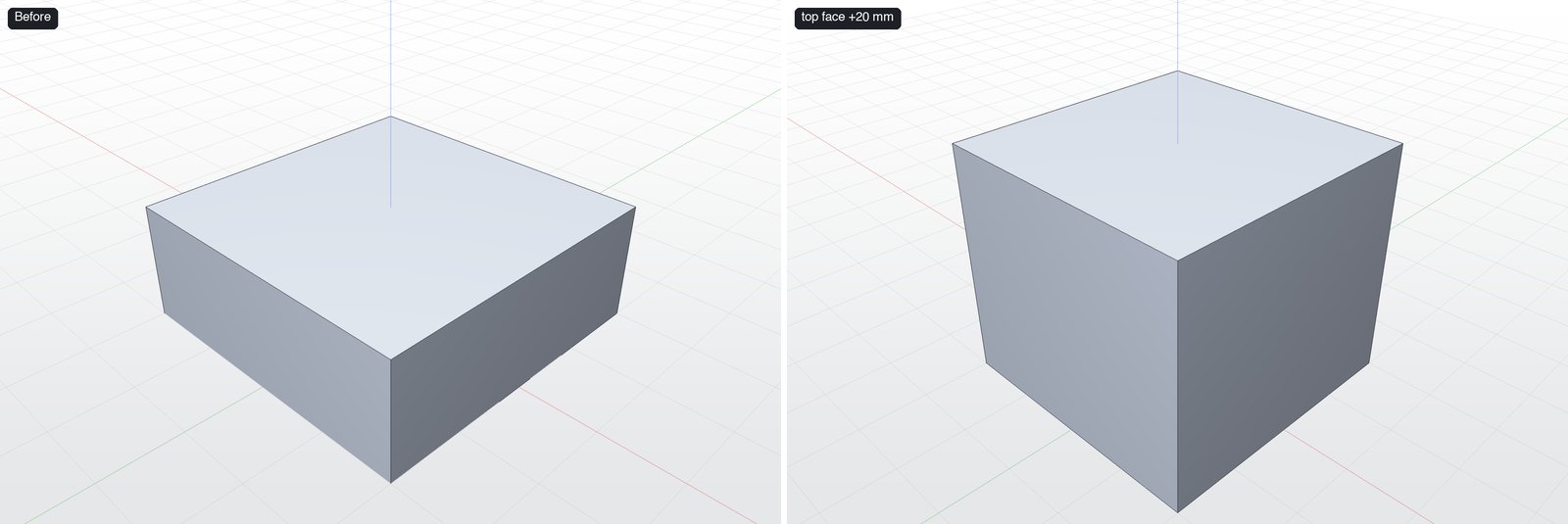
Use it to: Make a part taller/shorter or a boss deeper by moving one flat face.
| Parameter | Type | Required | Description |
|---|---|---|---|
face | integer | yes | Face index |
body | integer | yes | Body id |
distance | number | yes | mm |
name, group | string | Step name in the History; body group for new bodies |
Example call
{
  "name": "push_pull_face",
  "arguments": {
    "body": 1,
    "face": 5,
    "distance": 20
  }
}
Reply
{
  "bodies": [
    {
      "area": 8800,
      "bbox_max": [20, 20, 35],
      "bbox_min": [-20, -20, 0],
      "edges": 12,
      "faces": 6,
      "id": 1,
      "name": "Body 1",
      "size": [40, 40, 35],
      "volume": 56000
    }
  ],
  "features": [
    {
      "id": "2B9403B2-DF7C-4612-B285-30C6236A8829",
      "title": "Push/Pull"
    }
  ],
  "new_bodies": []
}
How to use
- Positive adds material along the face normal; negative removes it.
- Only planar faces.
Ask your assistant: "Pull the top face up 20 mm."
Transform & copy
transform_body
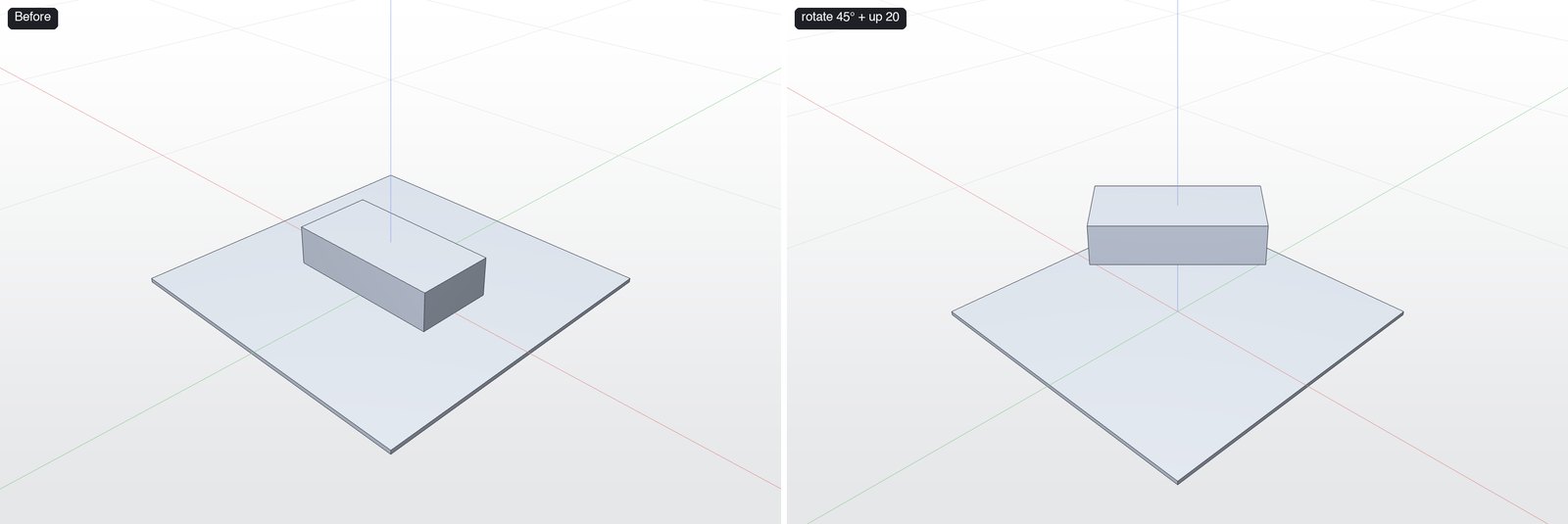
Moves and/or rotates a body. rotate turns angle degrees about axis through origin (default the origin) and is applied before translate.
Use it to: Move and/or rotate a body.
| Parameter | Type | Required | Description |
|---|---|---|---|
body | integer | yes | Body id |
translate | number[] | Offset [x, y, z] in mm | |
rotate | object | {axis: [x,y,z], angle: degrees, origin?: [x,y,z]} | |
name, group | string | Step name in the History; body group for new bodies |
Example call
{
  "name": "transform_body",
  "arguments": {
    "body": 1,
    "rotate": {
      "axis": [
        0,
        0,
        1
      ],
      "angle": 45
    },
    "translate": [
      0,
      0,
      20
    ]
  }
}
Reply
{
  "bodies": [
    {
      "area": 2800,
      "bbox_max": [21.21, 21.21, 30],
      "bbox_min": [-21.21, -21.21, 20],
      "edges": 12,
      "faces": 6,
      "id": 1,
      "name": "Body 1",
      "size": [42.43, 42.43, 10],
      "volume": 8000
    },
    "… 1 more"
  ],
  "features": [
    {
      "id": "B24952E8-D821-4561-9E26-FA852953CE67",
      "title": "Rotate around axis"
    },
    {
      "id": "782D78EE-2365-427E-B6FB-394DA7884A0F",
      "title": "Translate"
    }
  ],
  "new_bodies": []
}
How to use
rotateturnsangle° aboutaxisthroughorigin(default world origin), and is applied beforetranslate.- To rotate a body in place, set
originto its centre (fromget_modelbounding box).
Ask your assistant: "Rotate the bar 45° and lift it 20 mm."
mirror_body
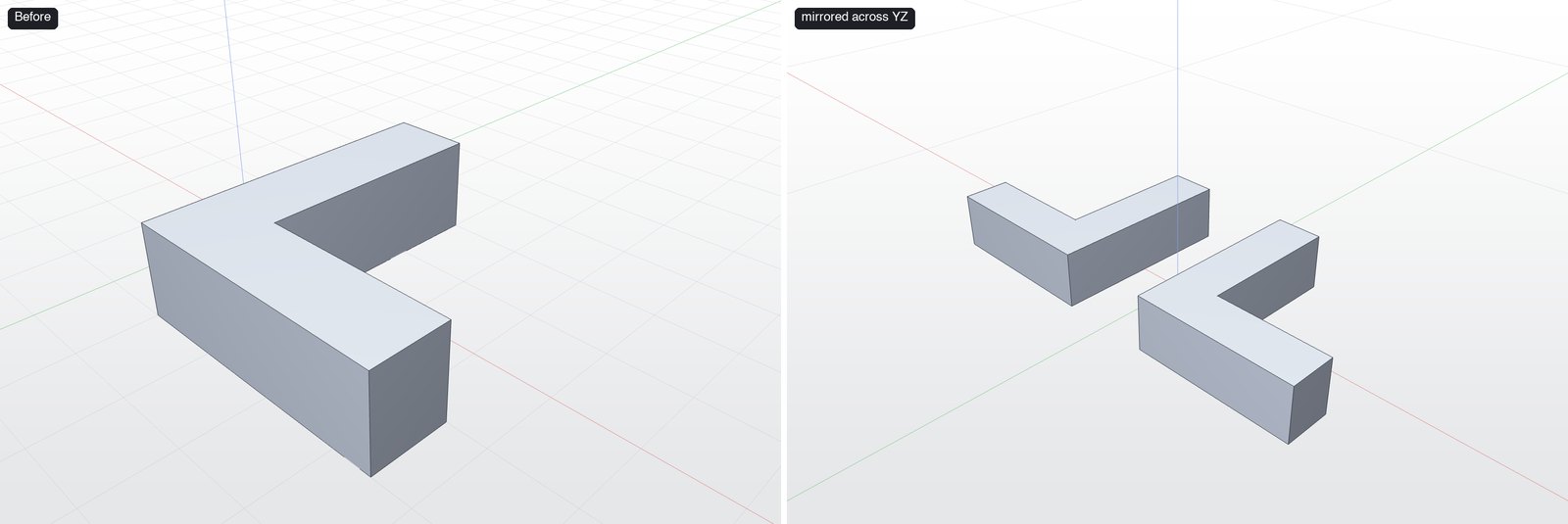
Mirrors a body across a plane (xy, xz, yz or custom, optionally offset along its normal).
Use it to: Symmetric parts: model one side, mirror the other.
| Parameter | Type | Required | Description |
|---|---|---|---|
plane | string | object | yes | "xy", "xz", "yz", or {origin, normal, x_dir} |
body | integer | yes | Body id |
offset | number | Plane offset in mm | |
keep_original | boolean | Keep the original body (default true) | |
name, group | string | Step name in the History; body group for new bodies |
Example call
{
  "name": "mirror_body",
  "arguments": {
    "body": 1,
    "plane": "yz"
  }
}
Reply
{
  "bodies": [
    {
      "area": 3100,
      "bbox_max": [45, 20, 12],
      "bbox_min": [10, -20, 0],
      "edges": 18,
      "faces": 8,
      "id": 1,
      "name": "Body 1",
      "size": [35, 40, 12],
      "volume": 7800
    },
    "… 1 more"
  ],
  "features": [
    {
      "id": "6B1BD3FC-2A06-41BB-960D-4609C0C61367",
      "title": "Mirror"
    }
  ],
  "new_bodies": [2]
}
How to use
keep_originaldefaults to true (you get both halves).offsetmoves the mirror plane along its normal.- Follow with
booleanunion if the halves should be one body.
Ask your assistant: "Mirror the L-bracket across the YZ plane."
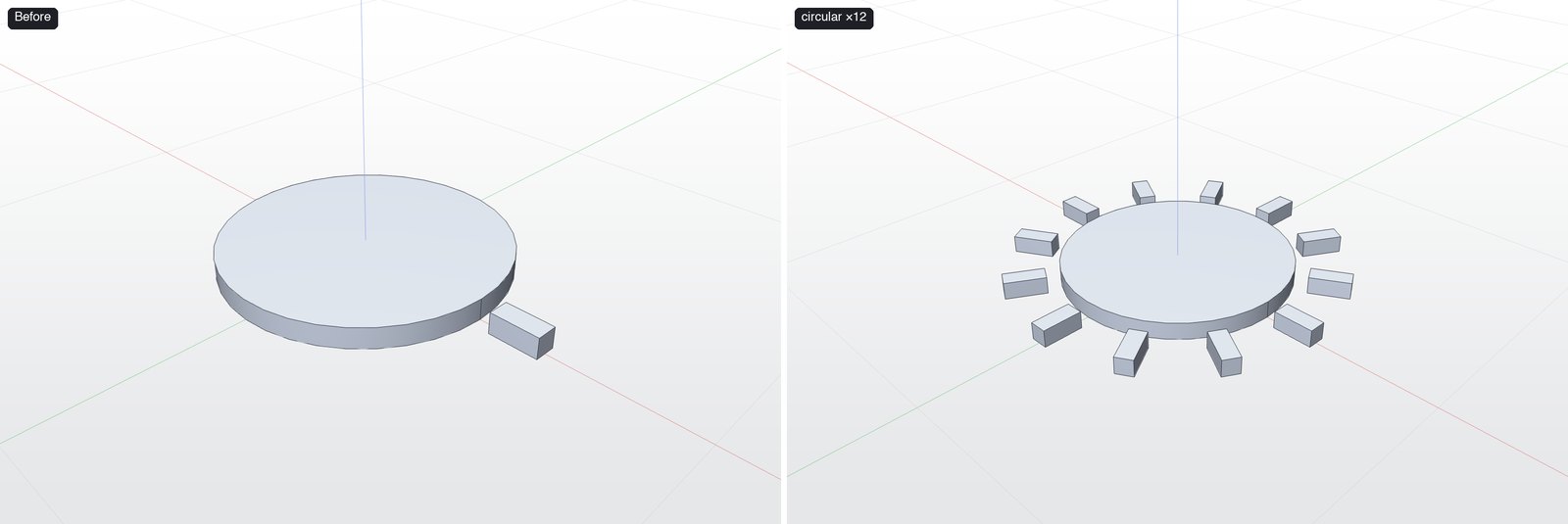
pattern_body
Repeats a body. linear: count copies spacing mm apart along direction. circular: count copies spread over angle degrees about axis through origin. fuse joins the copies into one body.
Use it to: Repeat a body in a line or around a circle: bolt holes, teeth, spokes, fence posts.
| Parameter | Type | Required | Description |
|---|---|---|---|
kind | linear | circular | yes | Pattern kind |
body | integer | yes | Body id |
count | integer | yes | Number of instances, including the original |
fuse | boolean | Join copies (default false) | |
direction | number[] | Linear direction | |
angle | number | Circular total angle, default 360 | |
axis | number[] | Circular axis direction (default Z) | |
spacing | number | Linear spacing in mm | |
origin | number[] | Circular axis point | |
name, group | string | Step name in the History; body group for new bodies |
Example call
{
  "name": "pattern_body",
  "arguments": {
    "body": 2,
    "kind": "circular",
    "count": 12,
    "axis": [
      0,
      0,
      1
    ],
    "origin": [
      0,
      0,
      0
    ]
  }
}
Reply
{
  "bodies": [
    {
      "area": 11561.06,
      "bbox_max": [40.08, 40.06, 6.08],
      "bbox_min": [-40, -40.06, -0.08],
      "edges": 3,
      "faces": 3,
      "id": 1,
      "name": "Body 1",
      "size": [80.08, 80.12, 6.16],
      "volume": 30159.29
    },
    "… 12 more"
  ],
  "features": [
    {
      "id": "9E83A76D-3CA1-4A1D-948D-68470AE2431F",
      "title": "Circular pattern (12)"
    }
  ],
  "new_bodies": [3, 4, 5, 6, 7, 8, 9, 10, 11, 12, 13]
}
How to use
countincludes the original.- linear:
spacing(mm) anddirection. circular:axis,originand totalangle(360 default). fuse: truejoins the copies into one body.
Ask your assistant: "Pattern the tooth 12 times around the hub."
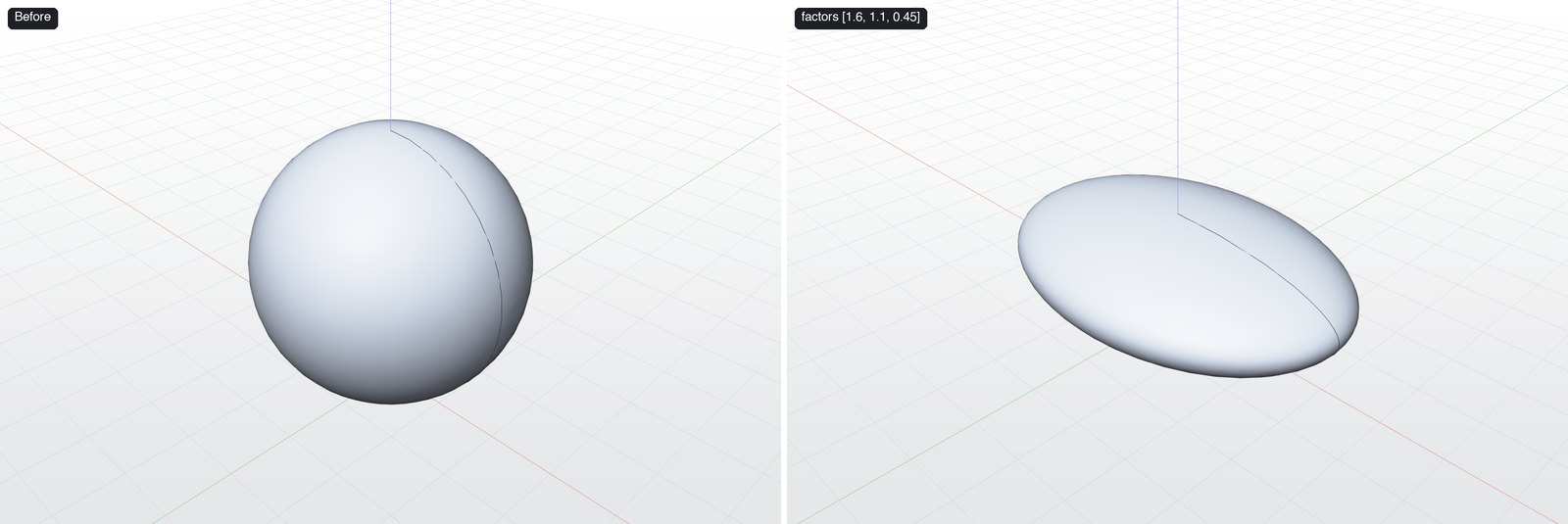
scale_body
Scales a body about center (default its bounding-box centre; "bottom" uses the centre of its base). Pass factor for uniform scaling or factors [x, y, z] to stretch it differently along each world axis, e.g. a sphere into a flattened pebble.
Use it to: Resize a body uniformly or stretch it per axis.
| Parameter | Type | Required | Description |
|---|---|---|---|
body | integer | yes | Body id |
center | any | Point [x, y, z], or "bottom" for the base centre | |
factor | number | Uniform factor | |
factors | number[] | Per-axis factors [x, y, z] | |
name, group | string | Step name in the History; body group for new bodies |
Example call
{
  "name": "scale_body",
  "arguments": {
    "body": 1,
    "factors": [
      1.6,
      1.1,
      0.45
    ],
    "center": "bottom"
  }
}
Reply
{
  "bodies": [
    {
      "area": 5428.02,
      "bbox_max": [32.16, 22.16, 18.17],
      "bbox_min": [-32.19, -22.16, -0.17],
      "edges": 3,
      "faces": 1,
      "id": 1,
      "name": "Body 1",
      "size": [64.35, 44.32, 18.35],
      "volume": 26528.57
    }
  ],
  "features": [
    {
      "id": "61DE7FC4-5786-41B7-B984-BEA2A8067CD6",
      "title": "Scale (per axis)"
    }
  ],
  "new_bodies": []
}
How to use
factorfor uniform,factors: [x, y, z]per axis.centerdefaults to the bounding-box centre;"bottom"keeps the base on the ground.
Ask your assistant: "Squash the sphere into a pebble shape."
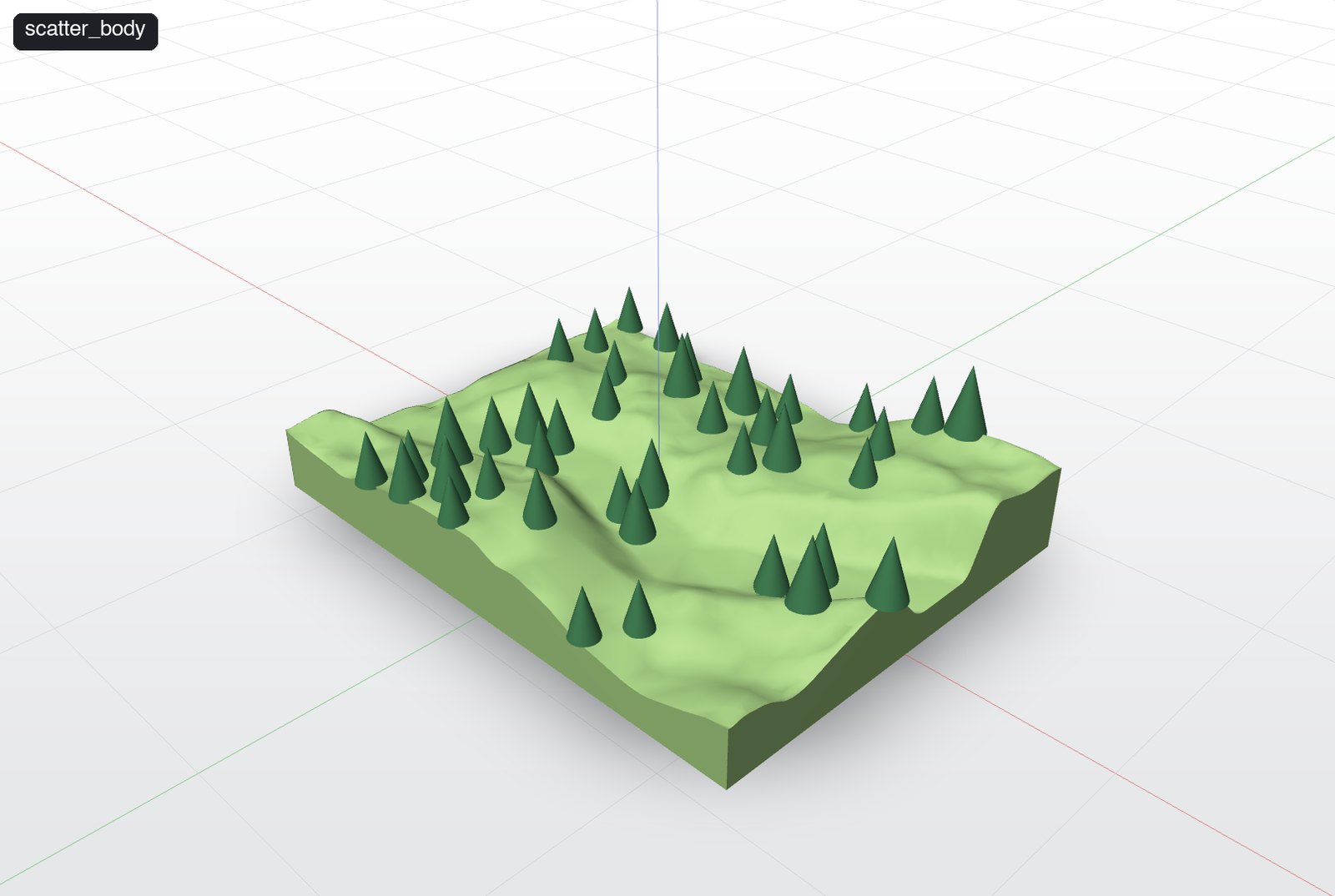
scatter_body
Scatters randomised copies of body over the upward-facing surface of target (trees on terrain, pebbles on a bank). Copies land where a straight-down ray first hits target, not under any avoid body (e.g. water), on slopes below max_slope, at least spacing mm apart. Each copy gets a random size between min_scale and max_scale and a random turn; the seed makes it repeatable. Copies take the source's appearance. The source is removed unless keep_original.
Use it to: Populate a surface with random copies: trees on terrain, rocks on a bank, rivets on a plate.
| Parameter | Type | Required | Description |
|---|---|---|---|
count | integer | yes | Number of copies (fewer if there isn't room) |
target | integer | yes | Body to scatter onto |
body | integer | yes | Body to copy |
keep_original | boolean | Keep the source body (default false) | |
seed | integer | Random seed, default 1 | |
sink | number | Fraction of height pushed into the ground, default 0.02 | |
max_slope | number | Steepest ground in degrees, default 40 | |
min_scale | number | Smallest size factor, default 0.8 | |
random_rotation | boolean | Turn each copy about its up axis (default true) | |
align_to_surface | boolean | Tilt copies to the surface normal (default false) | |
spacing | number | Minimum distance between copies in mm, default 0 | |
max_scale | number | Largest size factor, default 1.2 | |
avoid | integer[] | Bodies whose footprint takes no copies | |
name, group | string | Step name in the History; body group for new bodies |
Example call
{
  "name": "scatter_body",
  "arguments": {
    "body": 2,
    "target": 1,
    "count": 40,
    "spacing": 14,
    "seed": 3,
    "max_slope": 35
  }
}
Reply
{
  "bodies": "41 bodies",
  "features": [
    {
      "id": "C598795D-02F0-4A49-A339-C75D3E7F3305",
      "title": "Scatter (40)"
    }
  ],
  "new_bodies": [3, 4, 5, 6, 7, 8, 9, 10, 11, 12, 13, 14, 15, 16, 17, 18, 19, 20, 21, 22, 23, 24, 25, 26, 27, 28, 29, 30, 31, 32, 33, 34, 35, 36, 37, 38, 39, 40, 41, 42]
}
How to use
- Copies land where a straight-down ray hits
target, avoidingavoidbodies (e.g. water), on slopes undermax_slope, at leastspacingapart. - Each copy gets a random size (
min_scale–max_scale) and turn. Sameseed= same layout. - The source body is removed unless
keep_original: true. Usegroupto collect the copies (e.g. "Trees").
Ask your assistant: "Scatter 40 cone trees over the terrain, avoiding steep slopes."
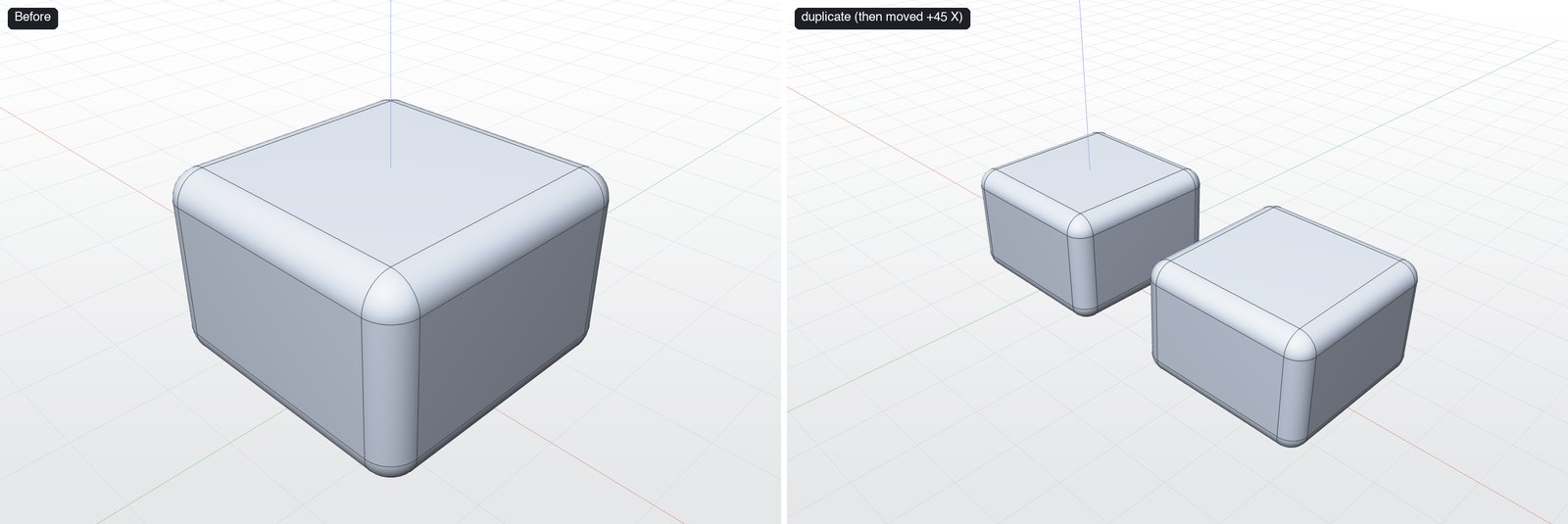
duplicate_body
Copies a body in place as a new body.
Use it to: Copy a body in place as a new body.
| Parameter | Type | Required | Description |
|---|---|---|---|
body | integer | yes | Body id |
name, group | string | Step name in the History; body group for new bodies |
Example call
{
  "name": "duplicate_body",
  "arguments": {
    "body": 1
  }
}
Reply
{
  "bodies": [
    {
      "area": 3777.77,
      "bbox_max": [15.03, 15.03, 20.03],
      "bbox_min": [-15.03, -15.03, -0.03],
      "edges": 56,
      "faces": 26,
      "id": 1,
      "name": "Body 1",
      "size": [30.07, 30.07, 20.07],
      "volume": 17418.11
    },
    "… 1 more"
  ],
  "features": [
    {
      "id": "5120185B-181F-484A-8CAC-C44E1CD97280",
      "title": "Duplicate"
    }
  ],
  "new_bodies": [2]
}
How to use
- The copy overlaps the original — move it with
transform_body(as in the picture).
Ask your assistant: "Duplicate the rounded block and move the copy 45 mm along X."
delete_body
Removes a body (as a history step, so it can be undone).
Use it to: Remove a body.
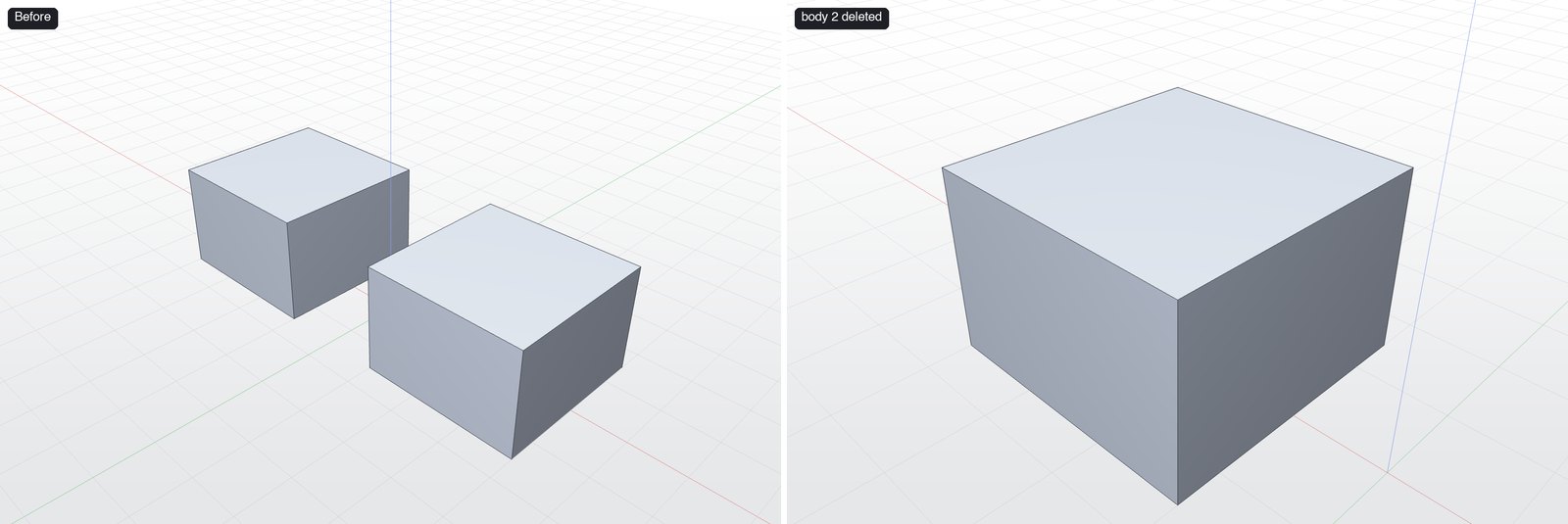
| Parameter | Type | Required | Description |
|---|---|---|---|
body | integer | yes | Body id |
name, group | string | Step name in the History; body group for new bodies |
Example call
{
  "name": "delete_body",
  "arguments": {
    "body": 2
  }
}
Reply
{
  "bodies": [
    {
      "area": 4200,
      "bbox_max": [-10, 15, 20],
      "bbox_min": [-40, -15, 0],
      "edges": 12,
      "faces": 6,
      "id": 1,
      "name": "Body 1",
      "size": [30, 30, 20],
      "volume": 18000
    }
  ],
  "features": [
    {
      "id": "B2B38196-FFDE-4EAB-BA6A-7E59A01260E2",
      "title": "Delete body"
    }
  ],
  "new_bodies": []
}
How to use
- It's a history step, so
undoordelete_featurebrings the body back.
Ask your assistant: "Delete the right-hand block."
History & variables
update_feature
Changes parameters of a feature in the history and rebuilds everything after it. values maps a parameter id or label (from get_model) to a number, or to an expression string over project variables (e.g. "width * 2").
Use it to: Change any past step's numbers — the core of parametric editing.
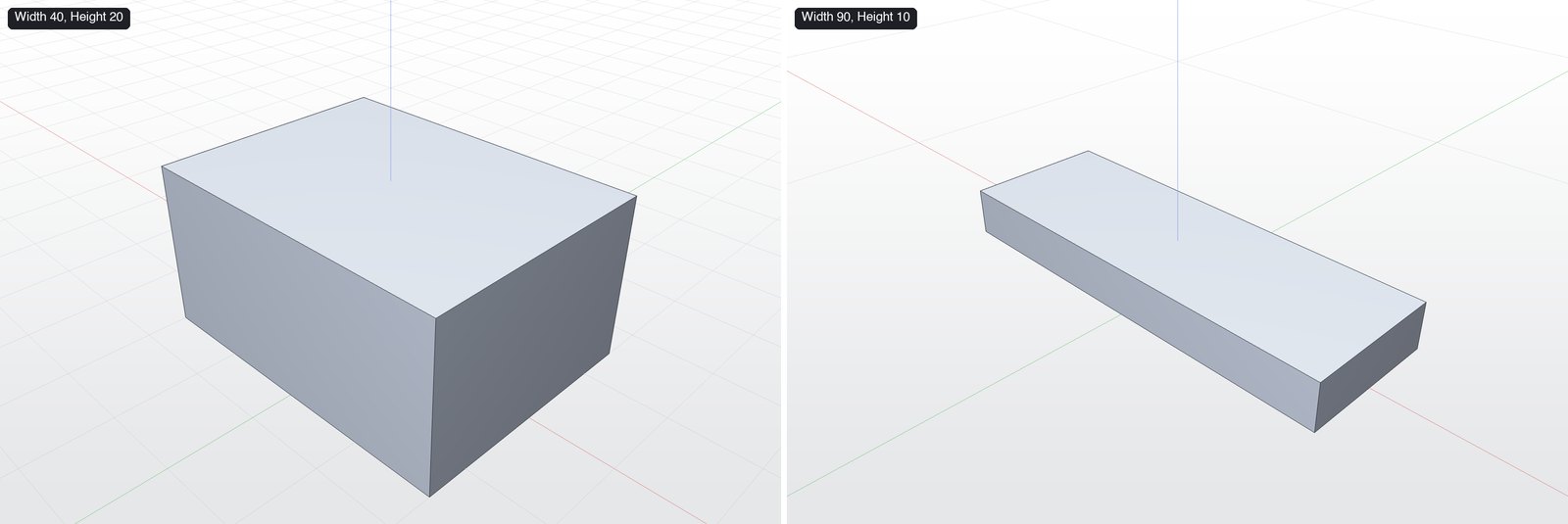
| Parameter | Type | Required | Description |
|---|---|---|---|
values | object | yes | Parameter id or label → number or expression |
feature_id | string | yes | Feature id |
Example call
{
  "name": "update_feature",
  "arguments": {
    "feature_id": "249C4B4E-…",
    "values": {
      "Width": 90,
      "Height": 10
    }
  }
}
Reply
{
  "bodies": [
    {
      "area": 7800,
      "bbox_max": [45, 15, 10],
      "bbox_min": [-45, -15, 0],
      "edges": 12,
      "faces": 6,
      "id": 1,
      "name": "Body 1",
      "size": [90, 30, 10],
      "volume": 27000
    }
  ],
  "document": "Untitled",
  "features": [
    {
      "id": "A3F34950-2C1C-49B4-9A3D-67CA49D66166",
      "index": 0,
      "parameters": [
        {
          "id": 0,
          "label": "Width",
          "unit": "mm",
          "value": 90
        },
        {
          "id": 1,
          "label": "Depth",
          "unit": "mm",
          "value": 30
        },
        {
          "id": 2,
          "label": "Height",
          "unit": "mm",
          "value": 10
        },
        {
          "id": 10,
          "label": "X",
          "unit": "mm",
          "value": 0
        },
        {
          "id": 11,
          "label": "Y",
          "unit": "mm",
          "value": 0
        },
        {
          "id": 12,
          "label": "Z",
          "unit": "mm",
          "value": 0
        }
      ],
      "title": "Box"
    }
  ],
  "groups": [],
  "units": "mm",
  "variables": []
}
How to use
- Keys are a parameter
labeloridfromget_model; values are numbers or expressions over variables ("width * 2"). - Everything after the step rebuilds automatically.
Ask your assistant: "Make the box 90 mm wide and 10 mm tall."
delete_feature
Removes a feature from the history and rebuilds.
Use it to: Remove a step from the history.
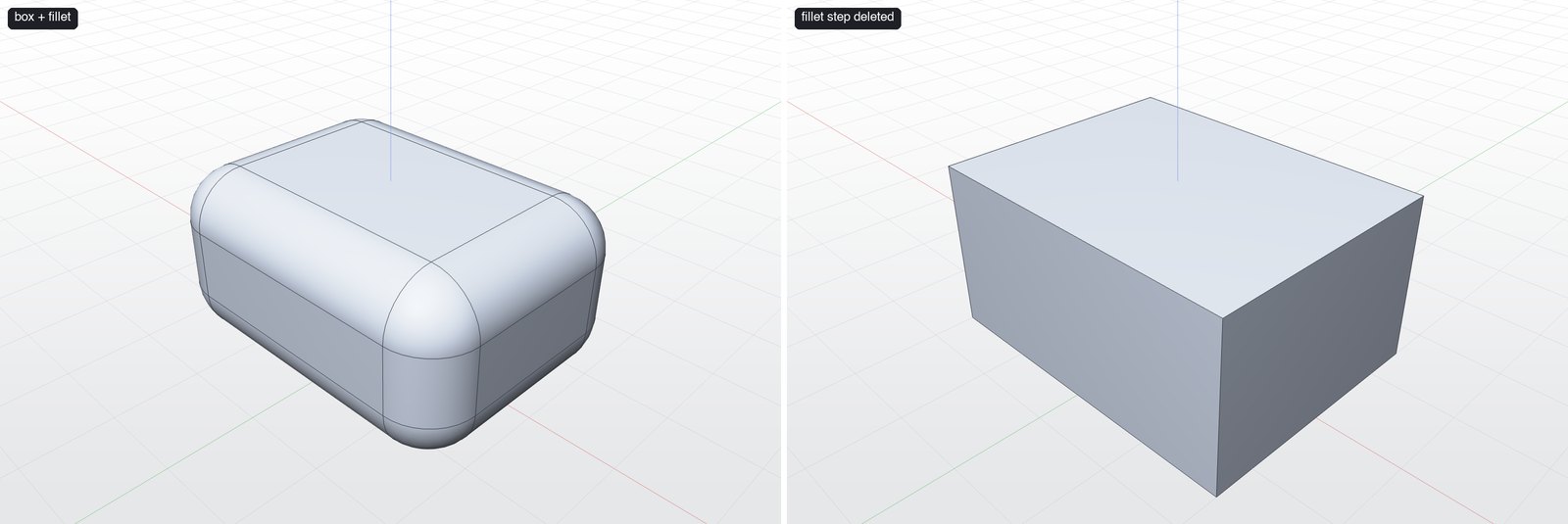
| Parameter | Type | Required | Description |
|---|---|---|---|
feature_id | string | yes | Feature id |
Example call
{
  "name": "delete_feature",
  "arguments": {
    "feature_id": "…"
  }
}
Reply
{
  "deleted": "Fillet (12)",
  "model": {
    "bodies": [
      {
        "area": 5200,
        "bbox_max": [20, 15, 20],
        "bbox_min": [-20, -15, 0],
        "edges": 12,
        "faces": 6,
        "id": 1,
        "name": "Body 1",
        "size": [40, 30, 20],
        "volume": 24000
      }
    ],
    "document": "Untitled",
    "features": [
      {
        "id": "C9921B1C-9D2B-4050-88AE-7D52A9687CF7",
        "index": 0,
        "parameters": [
          {
            "id": 0,
            "label": "Width",
            "unit": "mm",
            "value": 40
          },
          {
            "id": 1,
            "label": "Depth",
            "unit": "mm",
            "value": 30
          },
          {
            "id": 2,
            "label": "Height",
            "unit": "mm",
            "value": 20
          },
          {
            "id": 10,
            "label": "X",
            "unit": "mm",
            "value": 0
          },
          {
            "id": 11,
            "label": "Y",
            "unit": "mm",
            "value": 0
          },
          {
            "id": 12,
            "label": "Z",
            "unit": "mm",
            "value": 0
          }
        ],
        "title": "Box"
      }
    ],
    "groups": [],
    "units": "mm",
    "variables": []
  }
}
How to use
- Later steps that depended on it may fail; prefer
suppress_featureto try a change.
Ask your assistant: "Delete the fillet step."
suppress_feature
Turns a feature off (or back on) without deleting it.
Use it to: Turn a step off (or back on) without losing it.
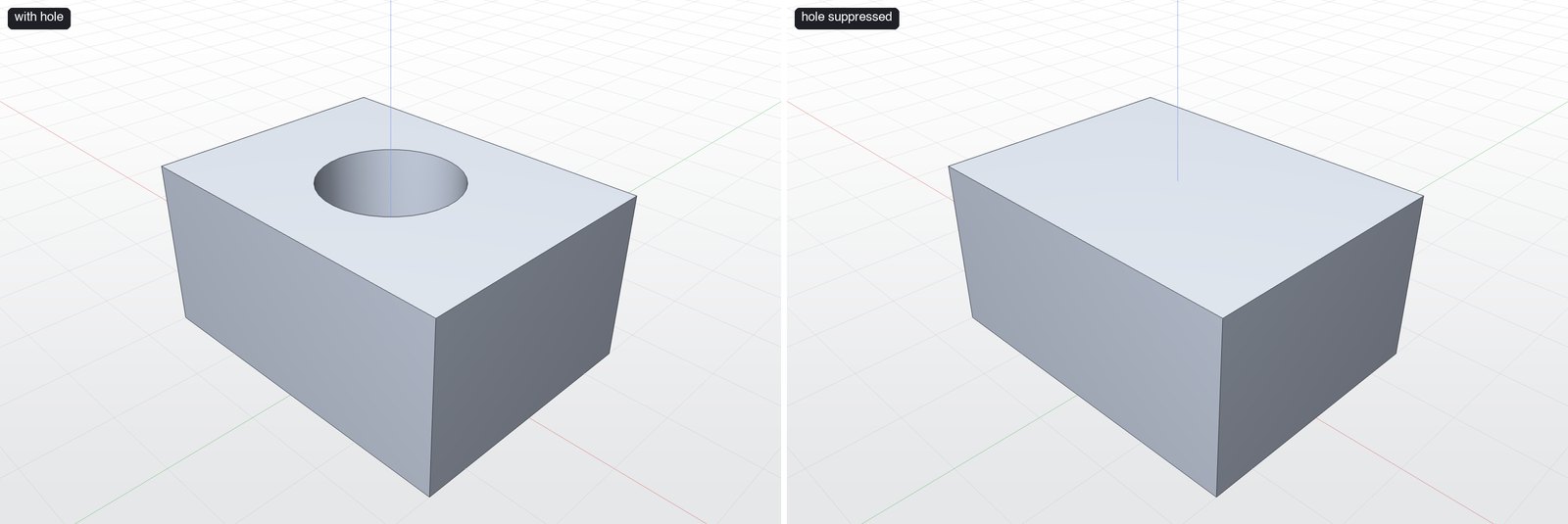
| Parameter | Type | Required | Description |
|---|---|---|---|
feature_id | string | yes | Feature id |
suppressed | boolean | Default true |
Example call
{
  "name": "suppress_feature",
  "arguments": {
    "feature_id": "…",
    "suppressed": true
  }
}
Reply
{
  "bodies": [
    {
      "area": 5200,
      "bbox_max": [20, 15, 20],
      "bbox_min": [-20, -15, 0],
      "edges": 12,
      "faces": 6,
      "id": 1,
      "name": "Body 1",
      "size": [40, 30, 20],
      "volume": 24000
    }
  ],
  "document": "Untitled",
  "features": [
    {
      "id": "0FFFFA64-38A2-4423-8262-38BB66EBEAD3",
      "index": 0,
      "parameters": [
        {
          "id": 0,
          "label": "Width",
          "unit": "mm",
          "value": 40
        },
        {
          "id": 1,
          "label": "Depth",
          "unit": "mm",
          "value": 30
        },
        {
          "id": 2,
          "label": "Height",
          "unit": "mm",
          "value": 20
        },
        {
          "id": 10,
          "label": "X",
          "unit": "mm",
          "value": 0
        },
        {
          "id": 11,
          "label": "Y",
          "unit": "mm",
          "value": 0
        },
        {
          "id": 12,
          "label": "Z",
          "unit": "mm",
          "value": 0
        }
      ],
      "title": "Box"
    },
    {
      "id": "4D28ACAE-657F-4649-BFDC-CAE57D1A87EE",
      "index": 1,
      "parameters": [
        {
          "id": 0,
          "label": "Distance",
          "unit": "mm",
          "value": 10
        }
      ],
      "suppressed": true,
      "title": "Extrude cut"
    }
  ],
  "groups": [],
  "units": "mm",
  "variables": []
}
How to use
- Pass
suppressed: falseto bring it back.
Ask your assistant: "Suppress the hole so I can see the part without it."
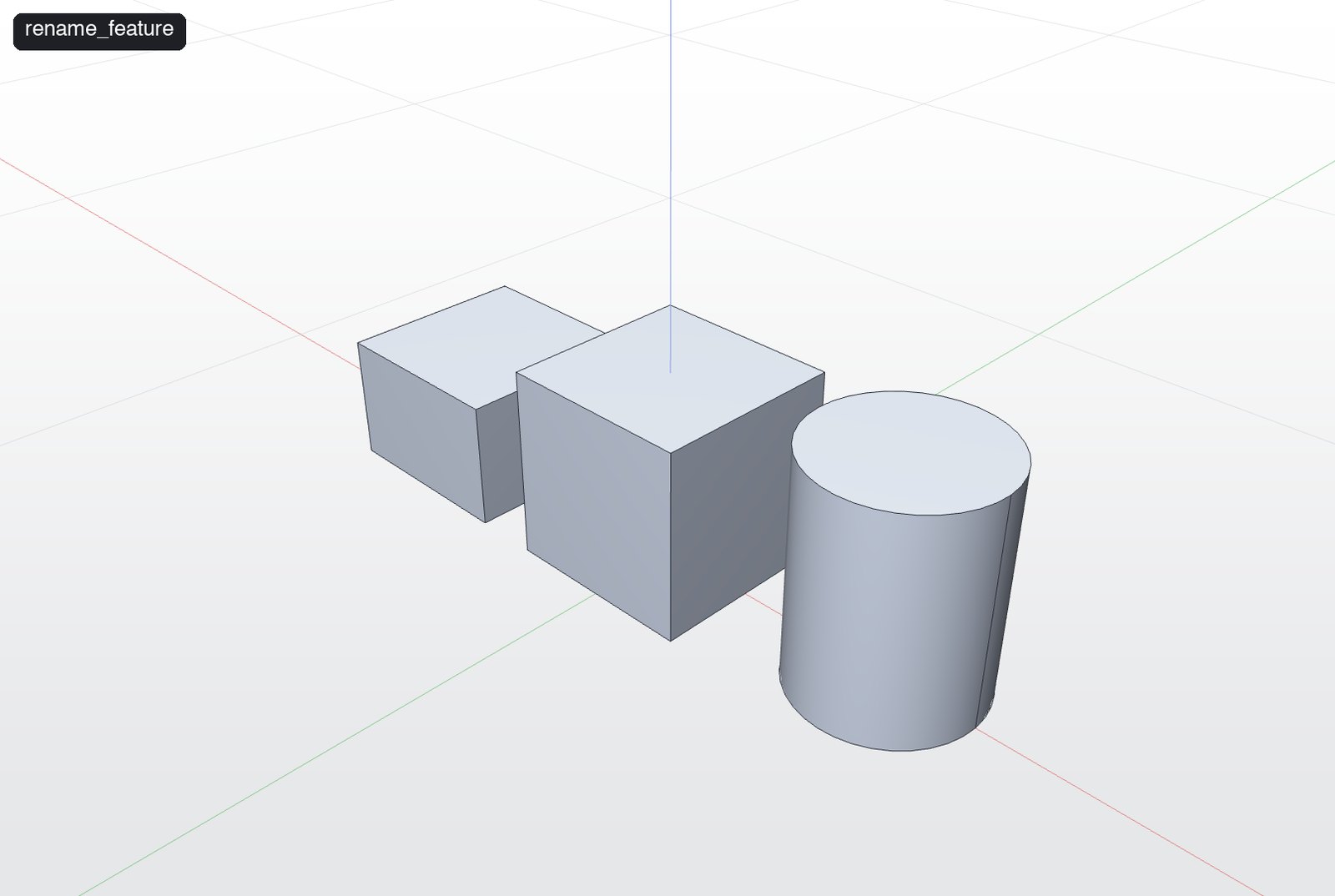
rename_feature
Renames a step in the history so the model is easy to read. An empty name puts back the operation type.
Use it to: Give history steps readable names.
| Parameter | Type | Required | Description |
|---|---|---|---|
feature_id | string | yes | Feature id |
name, group | string | Step name in the History; body group for new bodies |
Example call
{
  "name": "rename_feature",
  "arguments": {
    "feature_id": "…",
    "name": "Left block"
  }
}
Reply
{
  "id": "AA1BA33F-0713-430B-89F3-11354987A8F2",
  "title": "Left block"
}
How to use
- An empty name restores the operation type. You can also name steps up front with the
nameargument on any modeling tool.
Ask your assistant: "Rename the first step to "Left block"."
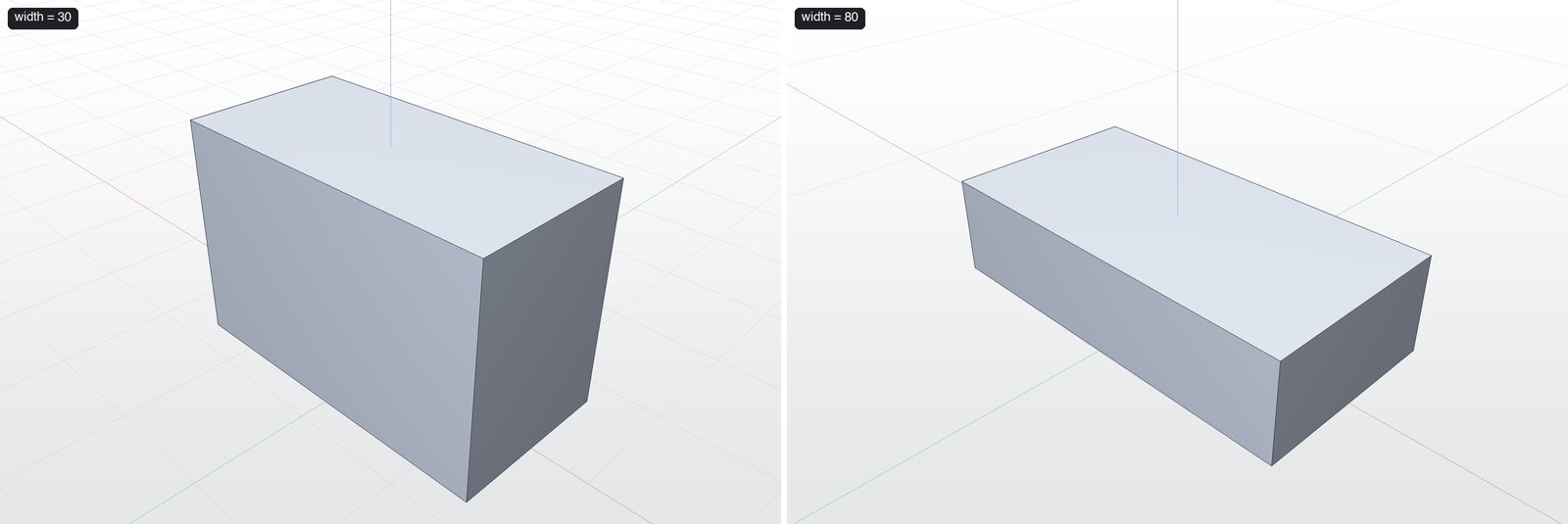
set_variable
Creates, changes or (with an empty expression) removes a project variable. Feature parameters bound to expressions update with it.
Use it to: Drive many dimensions from one named value.
| Parameter | Type | Required | Description |
|---|---|---|---|
expression | string | yes | Number or expression, e.g. "40" or "width / 2" |
name, group | string | Step name in the History; body group for new bodies |
Example call
{
  "name": "set_variable",
  "arguments": {
    "name": "width",
    "expression": "80"
  }
}
Reply
{
  "bodies": [
    {
      "area": 11200,
      "bbox_max": [40, 20, 20],
      "bbox_min": [-40, -20, 0],
      "edges": 12,
      "faces": 6,
      "id": 1,
      "name": "Body 1",
      "size": [80, 40, 20],
      "volume": 64000
    }
  ],
  "document": "Untitled",
  "features": [
    {
      "id": "B1F175AA-3776-42A5-9005-9B9B9E338BB7",
      "index": 0,
      "parameters": [
        {
          "expression": "width",
          "id": 0,
          "label": "Width",
          "unit": "mm",
          "value": 30
        },
        {
          "expression": "width / 2",
          "id": 1,
          "label": "Depth",
          "unit": "mm",
          "value": 15
        },
        {
          "id": 2,
          "label": "Height",
          "unit": "mm",
          "value": 20
        },
        {
          "id": 10,
          "label": "X",
          "unit": "mm",
          "value": 0
        },
        {
          "id": 11,
          "label": "Y",
          "unit": "mm",
          "value": 0
        },
        {
          "id": 12,
          "label": "Z",
          "unit": "mm",
          "value": 0
        }
      ],
      "title": "Box"
    }
  ],
  "groups": [],
  "units": "mm",
  "variables": [
    {
      "expression": "80",
      "name": "width"
    }
  ]
}
How to use
- Create with a number or expression; change it to update every bound parameter; an empty expression removes it.
- Bind parameters with
update_feature, e.g.{"Width": "width", "Depth": "width / 2"}.
Ask your assistant: "Make a variable width = 30, bind the box width to it and its depth to width/2, then change width to 80."
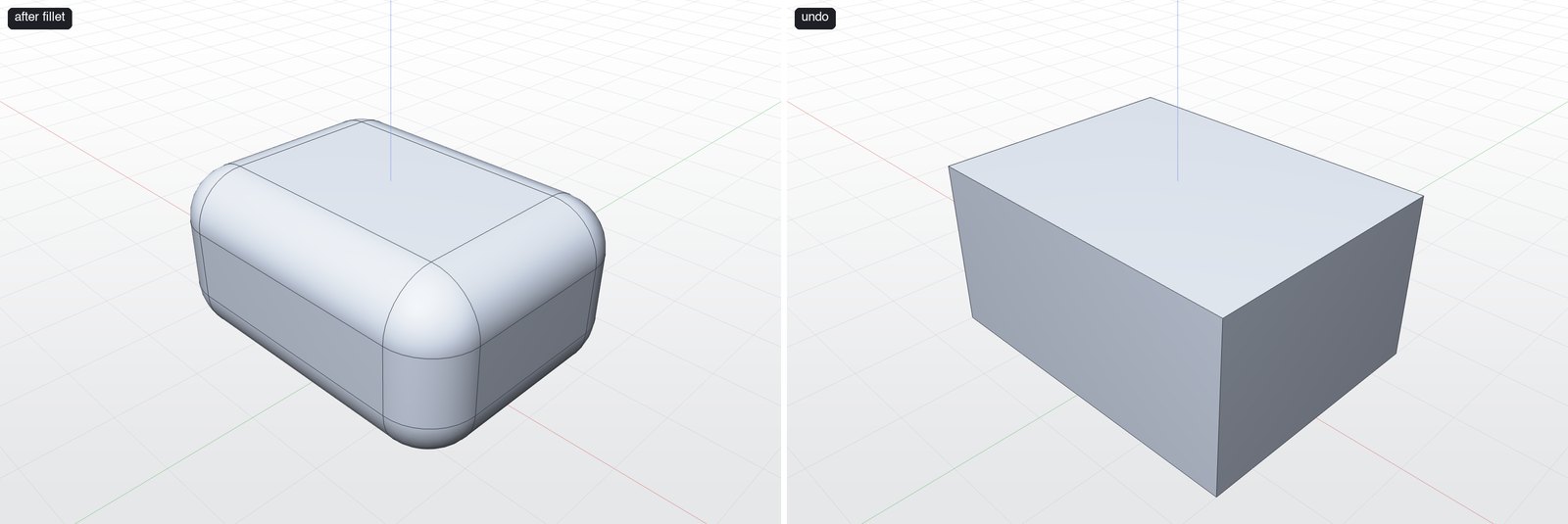
undo
Undoes the last history change.
Use it to: Undo the last history change.
No parameters.
Example call
{
  "name": "undo",
  "arguments": {}
}
Reply
{
  "bodies": [
    {
      "area": 5200,
      "bbox_max": [20, 15, 20],
      "bbox_min": [-20, -15, 0],
      "edges": 12,
      "faces": 6,
      "id": 1,
      "name": "Body 1",
      "size": [40, 30, 20],
      "volume": 24000
    }
  ],
  "document": "Untitled",
  "features": [
    {
      "id": "EE3B5D51-1EE5-4B9E-A765-413C796C3650",
      "index": 0,
      "parameters": [
        {
          "id": 0,
          "label": "Width",
          "unit": "mm",
          "value": 40
        },
        {
          "id": 1,
          "label": "Depth",
          "unit": "mm",
          "value": 30
        },
        {
          "id": 2,
          "label": "Height",
          "unit": "mm",
          "value": 20
        },
        {
          "id": 10,
          "label": "X",
          "unit": "mm",
          "value": 0
        },
        {
          "id": 11,
          "label": "Y",
          "unit": "mm",
          "value": 0
        },
        {
          "id": 12,
          "label": "Z",
          "unit": "mm",
          "value": 0
        }
      ],
      "title": "Box"
    }
  ],
  "groups": [],
  "units": "mm",
  "variables": []
}
How to use
- Same as ⌘Z in the app.
Ask your assistant: "Undo that."
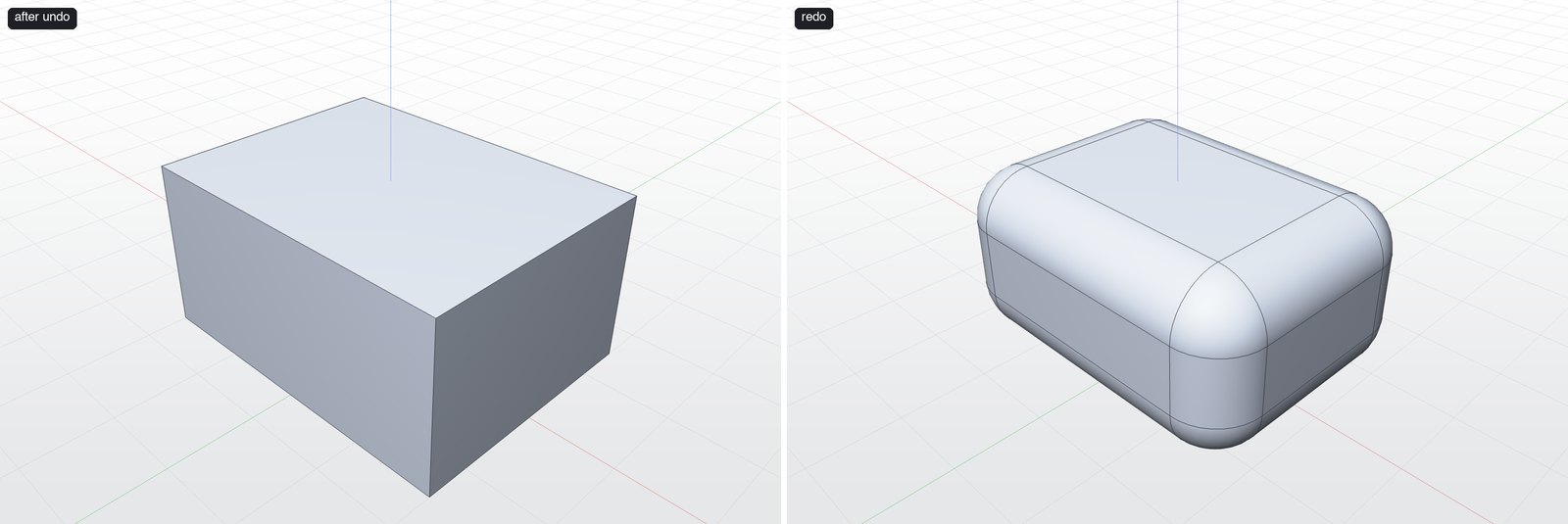
redo
Redoes the last undone change.
Use it to: Redo the last undone change.
No parameters.
Example call
{
  "name": "redo",
  "arguments": {}
}
Reply
{
  "bodies": [
    {
      "area": 4232.14,
      "bbox_max": [20.07, 15.07, 20.07],
      "bbox_min": [-20.07, -15.07, -0.07],
      "edges": 56,
      "faces": 26,
      "id": 1,
      "name": "Body 1",
      "size": [40.13, 30.14, 20.14],
      "volume": 21508.03
    }
  ],
  "document": "Untitled",
  "features": [
    {
      "id": "EE556891-5FC3-4168-A2F3-D17C7E2C42FC",
      "index": 0,
      "parameters": [
        {
          "id": 0,
          "label": "Width",
          "unit": "mm",
          "value": 40
        },
        {
          "id": 1,
          "label": "Depth",
          "unit": "mm",
          "value": 30
        },
        {
          "id": 2,
          "label": "Height",
          "unit": "mm",
          "value": 20
        },
        {
          "id": 10,
          "label": "X",
          "unit": "mm",
          "value": 0
        },
        {
          "id": 11,
          "label": "Y",
          "unit": "mm",
          "value": 0
        },
        {
          "id": 12,
          "label": "Z",
          "unit": "mm",
          "value": 0
        }
      ],
      "title": "Box"
    },
    {
      "id": "F3FC4756-57CC-477B-B29B-C20A35D7C9D4",
      "index": 1,
      "parameters": [
        {
          "id": 0,
          "label": "Radius",
          "unit": "mm",
          "value": 6
        }
      ],
      "title": "Fillet (12)"
    }
  ],
  "groups": [],
  "units": "mm",
  "variables": []
}
How to use
- Same as ⇧⌘Z in the app.
Ask your assistant: "Redo."
Organize bodies
rename_body
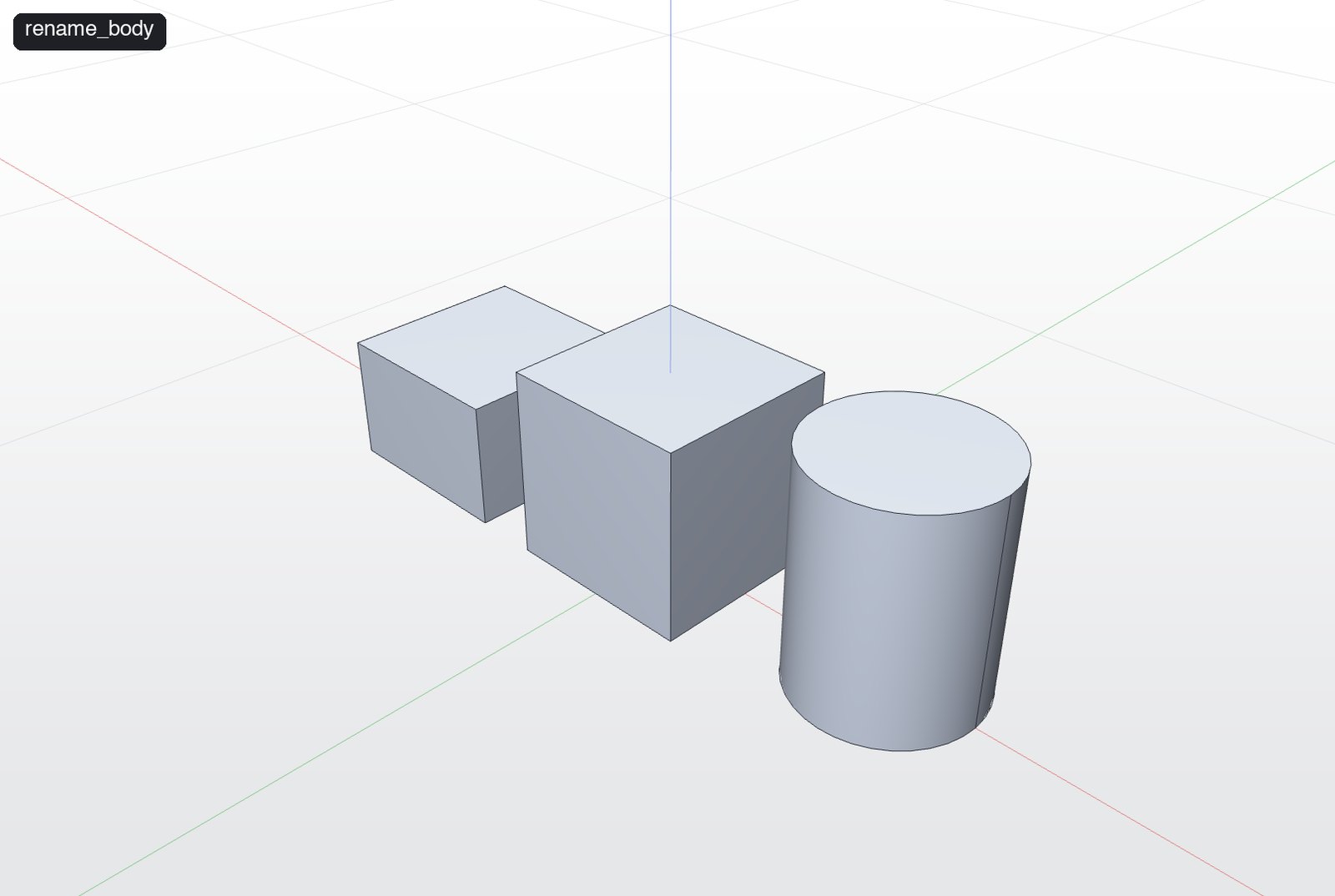
Names a body in the Bodies list, e.g. "Oak tree 3". An empty name puts back "Body N".
Use it to: Name bodies in the Bodies list.
| Parameter | Type | Required | Description |
|---|---|---|---|
body | integer | yes | Body id |
name, group | string | Step name in the History; body group for new bodies |
Example call
{
  "name": "rename_body",
  "arguments": {
    "body": 1,
    "name": "Left block"
  }
}
Reply
{
  "body": 1,
  "name": "Left block"
}
How to use
- An empty name restores "Body N".
Ask your assistant: "Call body 1 "Left block"."
group_bodies
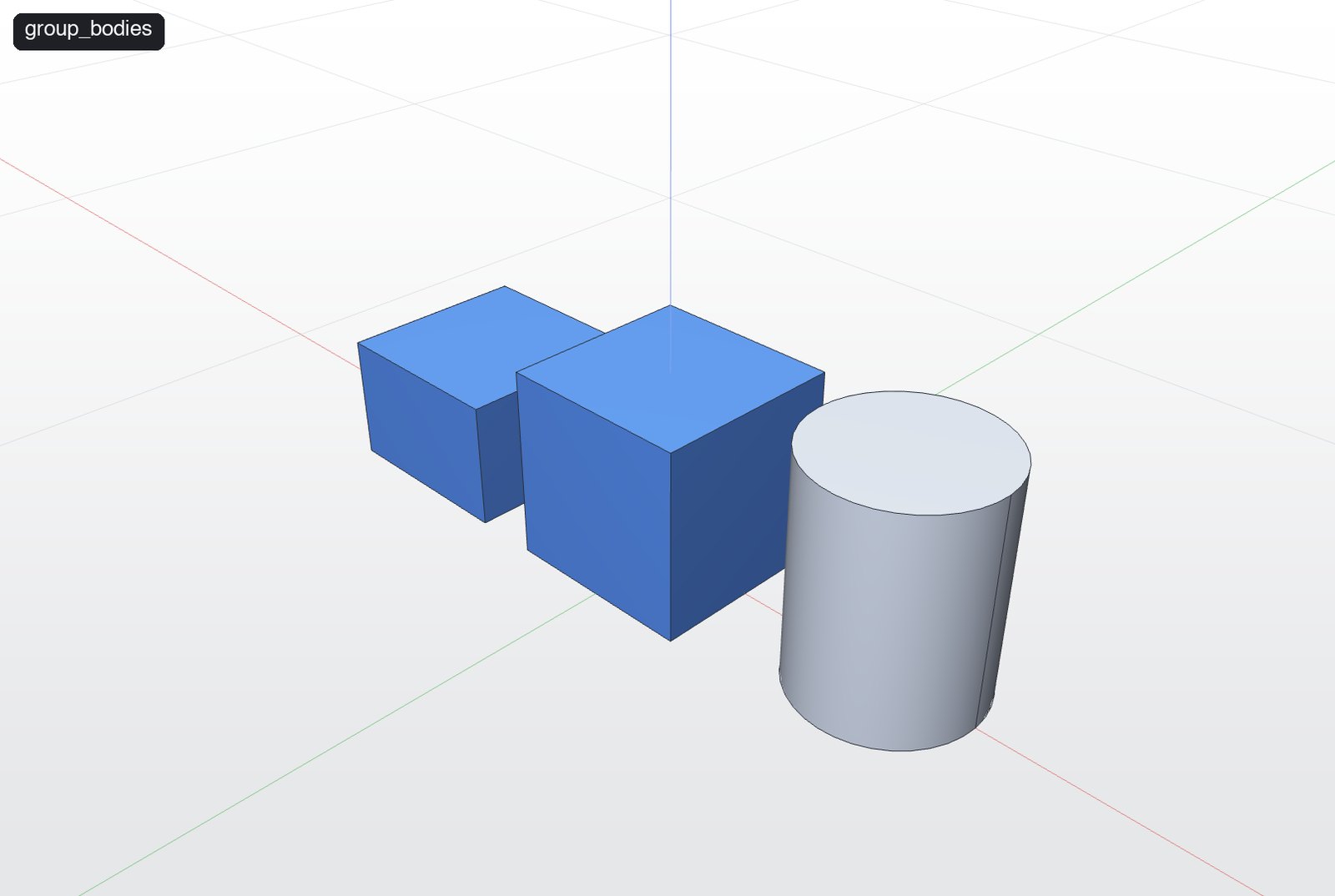
Puts bodies in a named group in the Bodies list, such as "Trees", "Rocks" or "Water". A body is in at most one group, so it leaves its old one. If a group with this name exists the bodies join it.
Use it to: Organise many bodies into named groups (Trees, Rocks, Wheels…).
| Parameter | Type | Required | Description |
|---|---|---|---|
bodies | integer[] | yes | Body ids |
name, group | string | Step name in the History; body group for new bodies |
Example call
{
  "name": "group_bodies",
  "arguments": {
    "name": "Blocks",
    "bodies": [
      1,
      2
    ]
  }
}
Reply
{
  "group": {
    "bodies": [1, 2],
    "id": "4BF5390F-E917-493F-8CEA-4231F8FF558F",
    "name": "Blocks"
  },
  "groups": [
    {
      "bodies": [1, 2],
      "id": "4BF5390F-E917-493F-8CEA-4231F8FF558F",
      "name": "Blocks"
    }
  ]
}
How to use
- A body is in at most one group. If the group name exists the bodies join it.
- Groups are organisational only — they don't change geometry. (The picture colours the group blue for clarity.)
Ask your assistant: "Group the two blocks as "Blocks"."
ungroup_bodies
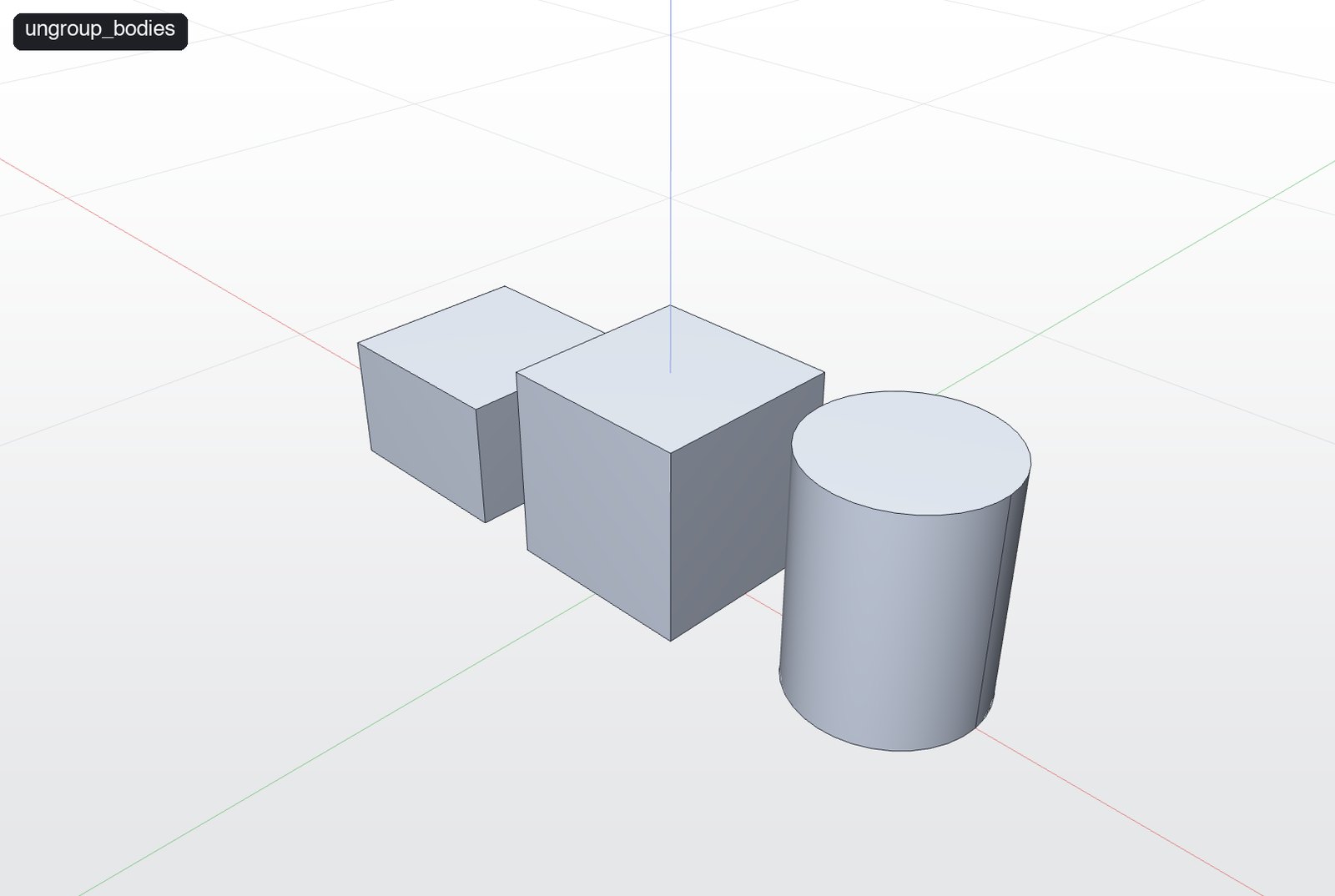
Takes bodies out of their groups (pass bodies), or removes a whole group by id or name (pass group). The bodies themselves stay.
Use it to: Take bodies out of their group, or remove a whole group.
| Parameter | Type | Required | Description |
|---|---|---|---|
bodies | integer[] | Body ids | |
name, group | string | Step name in the History; body group for new bodies |
Example call
{
  "name": "ungroup_bodies",
  "arguments": {
    "bodies": [
      2
    ]
  }
}
Reply
{
  "groups": [
    {
      "bodies": [1],
      "id": "CB621FC4-79A6-4BB6-92D8-89808B4DB11C",
      "name": "Blocks"
    }
  ]
}
How to use
- Pass
bodiesto remove specific bodies, orgroup(id or name) to dissolve a group. Bodies stay.
Ask your assistant: "Take body 2 out of its group."
rename_group
Renames a body group.
Use it to: Rename a body group.
No parameters.
Example call
{
  "name": "rename_group",
  "arguments": {
    "group": "Blocks",
    "name": "Cubes"
  }
}
Reply
{
  "bodies": [1, 2],
  "id": "998A8153-5DCB-476A-BFC8-ADF74ACBF404",
  "name": "Cubes"
}
How to use
groupis the id or current name.
Ask your assistant: "Rename the Blocks group to Cubes."
Appearance & view
set_appearance
Paints bodies: a colour ("#RRGGBB"), metallic 0–1, roughness 0–1 and opacity 0–1. Shown in the viewport and in Visualize renders, and saved with the document.
Use it to: Colour and material: metal, plastic, glass, rubber.
| Parameter | Type | Required | Description |
|---|---|---|---|
bodies | integer[] | yes | Body ids |
roughness | number | 0 mirror to 1 matte | |
opacity | number | 1 solid, lower is see-through | |
metallic | number | 0 matte to 1 metal | |
color | string | Hex colour, e.g. #8F9A78 |
Example call
{
  "name": "set_appearance",
  "arguments": {
    "bodies": [
      1
    ],
    "color": "#C9CDD2",
    "metallic": 1,
    "roughness": 0.15
  }
}
Reply
{
  "painted": [1]
}
How to use
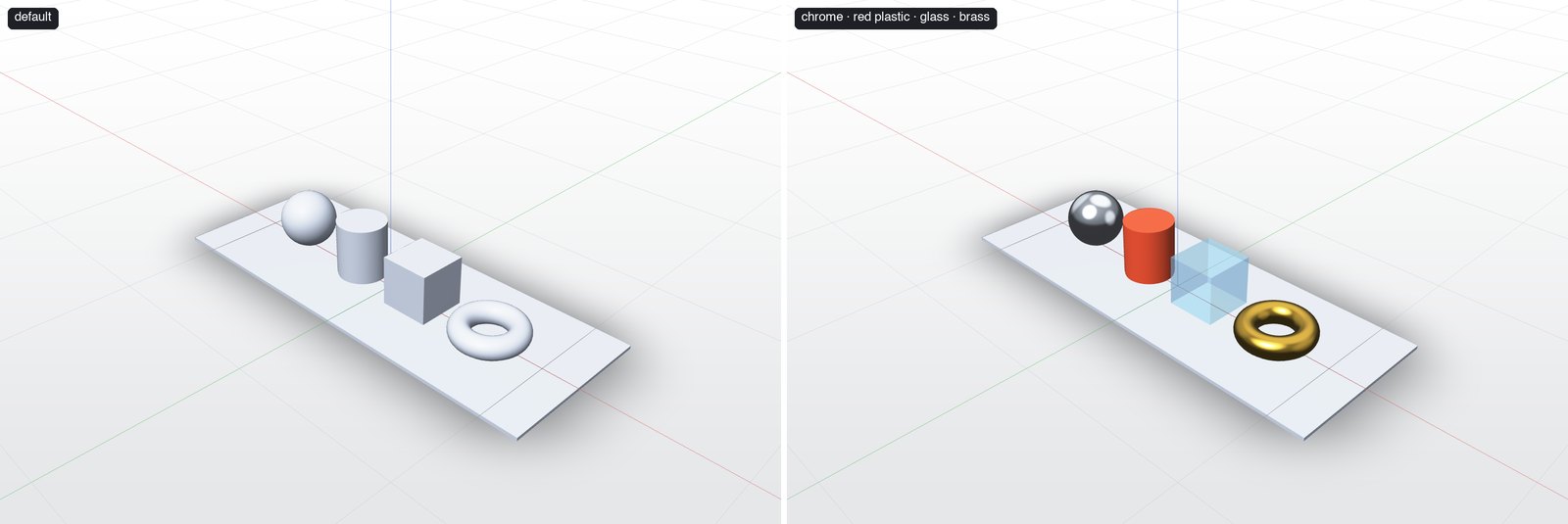
metallic0 (paint/plastic) → 1 (metal);roughness0 (mirror) → 1 (matte);opacity< 1 for glass.- Recipes: chrome
#C9CDD2 m1 r0.15· red plastic#D9482B m0 r0.35· glass#7FB8E6 opacity 0.4 r0.05· brass#C59B3A m1 r0.3. - Saved with the document, shown in the viewport and in Visualize.
Ask your assistant: "Make the sphere chrome, the cylinder red plastic, the box glass and the torus brass."
set_environment
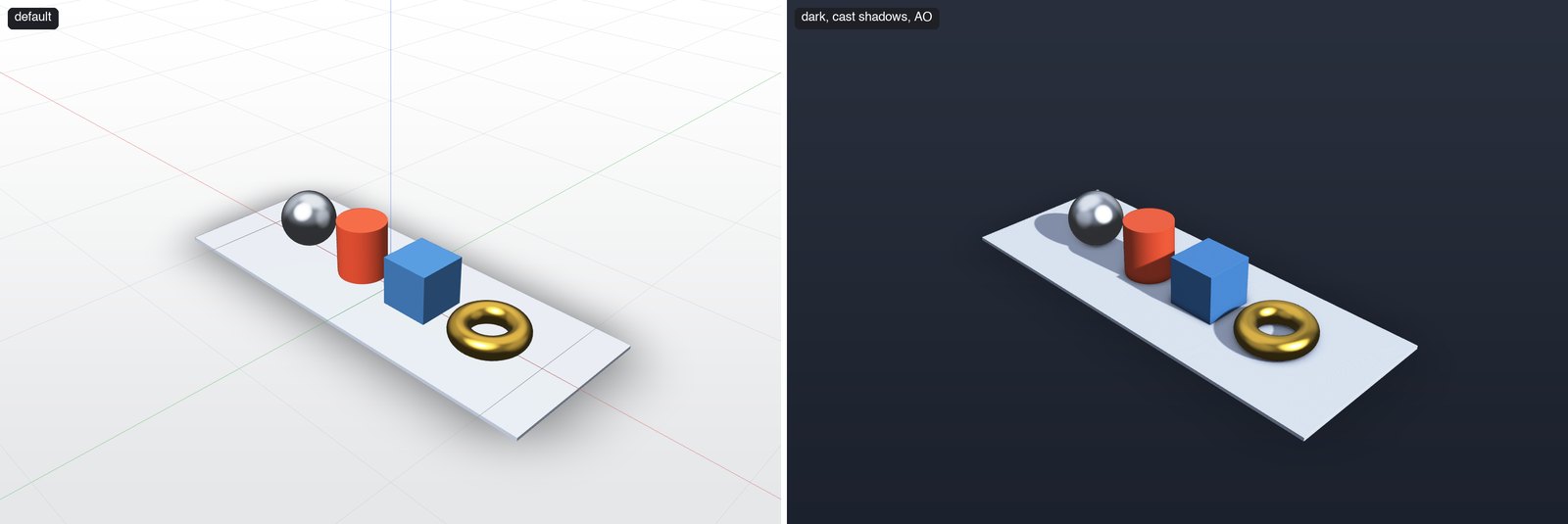
Sets the background, lighting and Visualized render options of the active document. Only the given values change. Rendering effects (cast shadows, ambient occlusion, smooth shading) show in the visualized display mode (set_view display_mode) and in Visualize.
Use it to: Presentation look: background, lights, shadows, ambient occlusion.
| Parameter | Type | Required | Description |
|---|---|---|---|
ground_shadow | boolean | Soft contact shadow under each body | |
gradient | boolean | Lighter towards the top | |
background | string | Background colour #RRGGBB | |
light_elevation | number | Key light height above the ground, degrees 10–85 | |
occlusion_strength | number | 0–1 | |
ambient_occlusion | boolean | Darken creases and contacts | |
show_grid | boolean | Show the ground grid | |
light_azimuth | number | Key light direction, degrees right of the viewer (-180–180) | |
cast_shadows | boolean | Bodies cast shadows on each other and on the floor | |
shadow_softness | number | 0 crisp to 1 very soft | |
light_intensity | number | Key light multiplier 0–2 | |
smooth_shading | boolean | Blend normals across shallow face joins |
Example call
{
  "name": "set_environment",
  "arguments": {
    "background": "#1E2430",
    "show_grid": false,
    "cast_shadows": true,
    "ambient_occlusion": true,
    "light_azimuth": -50,
    "light_elevation": 35,
    "light_intensity": 1.3
  }
}
Reply
"Environment updated"
How to use
- Only the values you pass change.
- Shadows, AO and smooth shading show in the
visualizeddisplay mode (viaset_vieworscreenshot) and in Visualize.
Ask your assistant: "Give the scene a dark background with soft cast shadows."
set_view
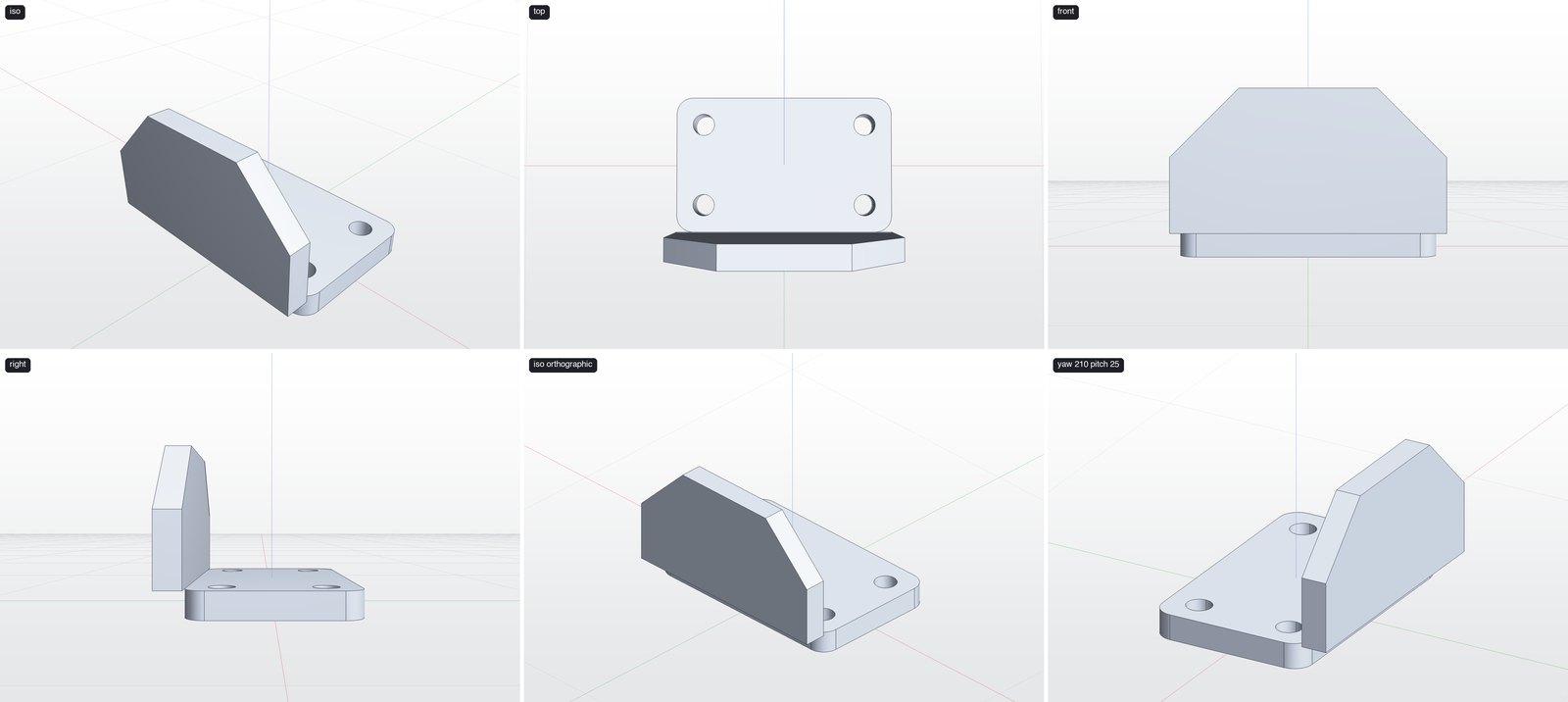
Points the document's camera at a standard view, zooms to fit, and/or sets an exact orbit angle. yaw is degrees around Z (0 looks from +X), pitch is degrees above the ground plane, zoom scales the distance (below 1 is closer).
Use it to: Point the camera: standard views, exact orbit angles, projection, display mode.
| Parameter | Type | Required | Description |
|---|---|---|---|
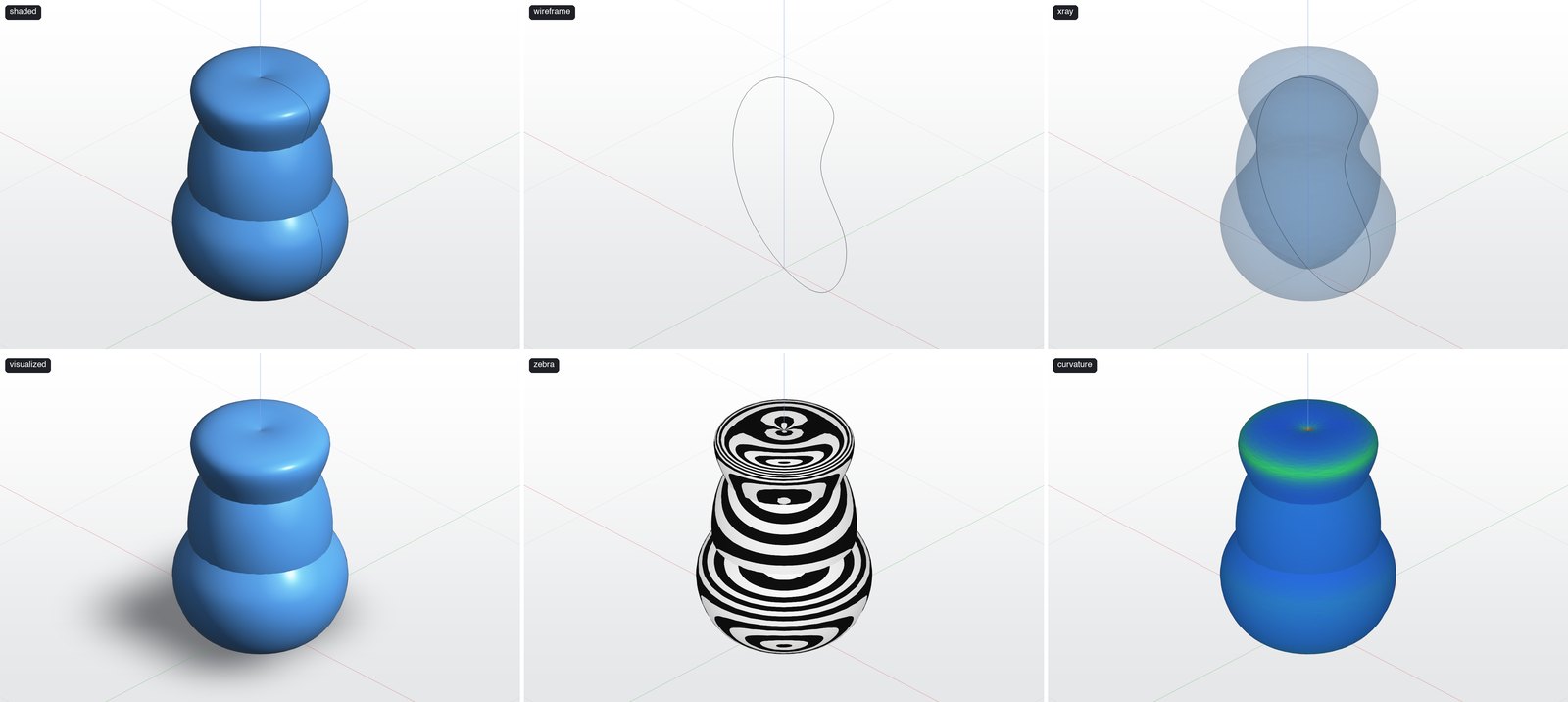
display_mode | shaded | wireframe | xray | visualized | zebra | curvature | Viewport display mode; visualized renders with materials, cast shadows and ambient occlusion and hides CAD edges | |
view | iso | top | front | right | Camera view | |
yaw | number | Degrees around Z; 0 looks from +X | |
projection | perspective | orthographic | Camera projection | |
fit | boolean | Zoom to fit all bodies (default true when view is given) | |
pitch | number | Degrees above the ground plane | |
zoom | number | Distance multiplier; 0.8 is 20% closer |
Example call
{
  "name": "set_view",
  "arguments": {
    "view": "front"
  }
}
Reply
"View updated"
How to use
view: iso, top, front, right (fits by default).yaw(around Z, 0 looks from +X),pitch(above ground),zoom(< 1 is closer) for exact framing.projection: perspective / orthographic.display_mode: shaded, wireframe, xray, visualized, zebra, curvature.
Ask your assistant: "Show me the front view, orthographic."
screenshot
Renders the active document's viewport to a PNG image. Optionally sets a view (iso, top, front, right) and fits first.
Use it to: Let the assistant see the model — check its work, or produce renders.
Read-only — never changes the model.
| Parameter | Type | Required | Description |
|---|---|---|---|
display_mode | shaded | wireframe | xray | visualized | zebra | curvature | Viewport display mode; visualized renders with materials, cast shadows and ambient occlusion and hides CAD edges | |
view | iso | top | front | right | Camera view | |
scale | number | Pixel scale 1–3, default 1.5 | |
yaw | number | Degrees around Z; 0 looks from +X | |
projection | perspective | orthographic | Camera projection | |
fit | boolean | Zoom to fit all bodies (default true when view is given) | |
pitch | number | Degrees above the ground plane | |
zoom | number | Distance multiplier; 0.8 is 20% closer |
Example call
{
  "name": "screenshot",
  "arguments": {
    "view": "iso",
    "display_mode": "visualized",
    "scale": 2
  }
}
Reply
{
  "content": [
    {
      "type": "image",
      "mimeType": "image/png",
      "data": "<base64 PNG>"
    }
  ]
}
How to use
- Returns a PNG image the assistant can look at. Takes the same view options as
set_view, plusscale1–3 (default 1.5). - Ask the assistant to screenshot after each major step — it catches mistakes early.
- Use
zebrato check surface smoothness andcurvatureto spot sharp transitions.
Ask your assistant: "Take a visualized screenshot from the iso view."
Output
export_model
Writes bodies to a file: STEP, IGES, STL, BREP (precise), 3MF, GLB, OBJ, USDZ (meshes with colours), DXF or SVG (the open, selected or visible sketches; "dxf_drawing" and "pdf" give a drawing sheet of the model), or SCULPT3D (the whole document). Defaults: all bodies, saved to ~/Downloads/
Use it to: Write files: CAD exchange, 3D printing, AR, drawings, or the whole document.
Read-only — never changes the model.
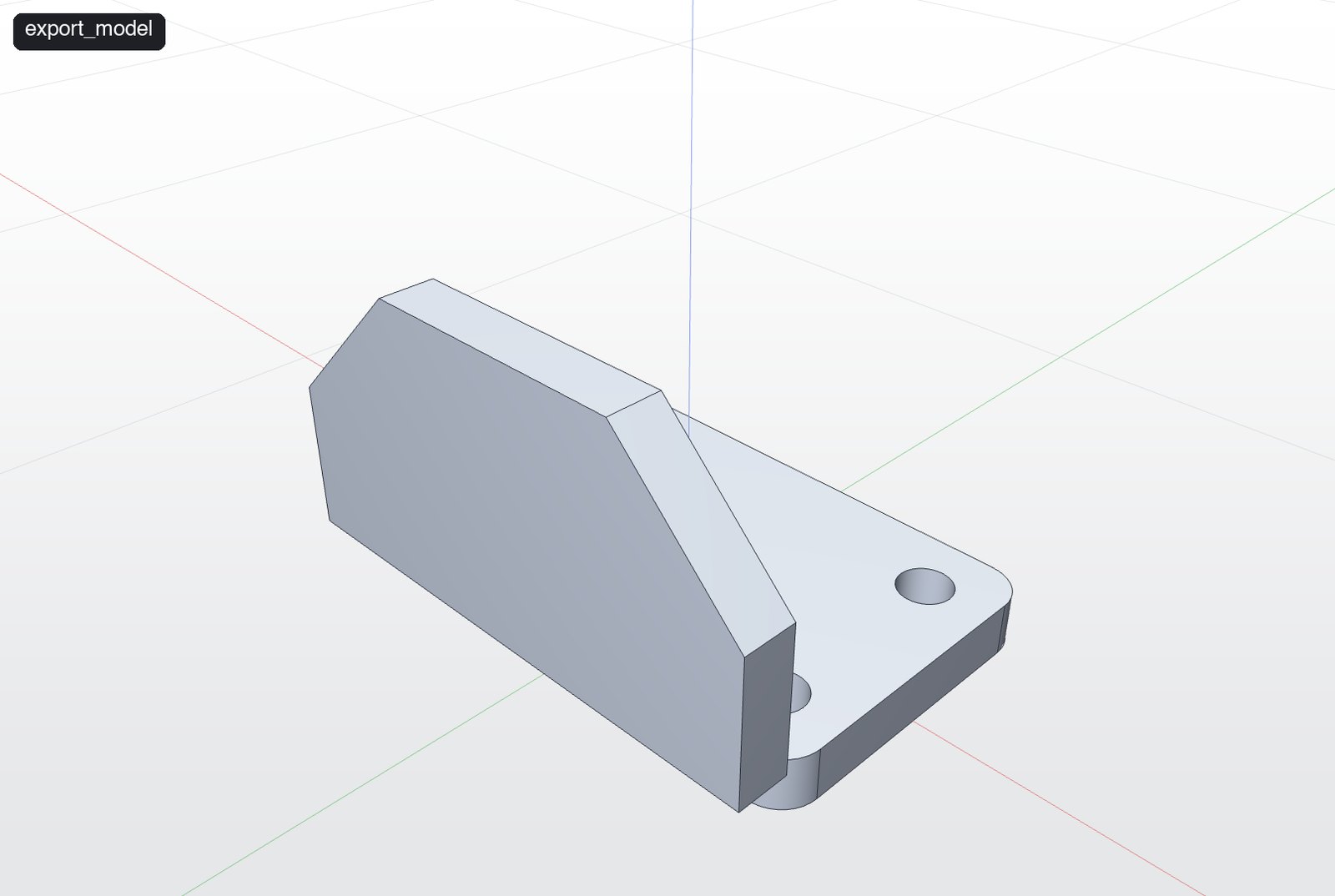
| Parameter | Type | Required | Description |
|---|---|---|---|
format | step | iges | stl | brep | 3mf | glb | obj | usdz | dxf | dxf_drawing | svg | pdf | sculpt3d | yes | File format |
path | string | Absolute output path | |
bodies | integer[] | Body ids (default all) |
Example call
{
  "name": "export_model",
  "arguments": {
    "format": "step",
    "path": "/Users/me/Downloads/bracket.step"
  }
}
Reply
{
  "bodies": [1],
  "bytes": 73603,
  "path": "/private/tmp/claude-501/-Users-dineshvadivel--claude-spares-spare-gvFiTe/6be4498e-59a8-47a2-8869-b303bef39456/scratchpad/bracket.step"
}
How to use
- Formats:
step,iges,brep(precise CAD) ·stl,3mf,obj,glb,usdz(meshes, with colours where supported) ·dxf,svg(sketches) ·dxf_drawing,pdf(drawing sheet) ·sculpt3d(whole document). - Default path:
~/Downloads/<document name>.<ext>; default bodies: all. Passbodiesto export a subset.
Ask your assistant: "Export the bracket as STEP and STL to my Downloads."
Recipes
Enclosure with a lid — sketch_extrude rounded rectangle → fillet_edges outer edges → shell_body (top open, 2 mm) → duplicate_body → split_body(dev) or a second sketch_extrude for the lid → export_model 3MF.
Flange — sketch_revolve the profile → sketch_extrude one bolt hole as cut on the face → or a cylinder + pattern_body circular + boolean subtract.
Parametric part — set_variable width, height → model with plain numbers → update_feature to bind {"Width": "width"} → change variables to resize.
Diorama — create_terrain → set_appearance grass → add_primitive cone tree → scatter_body with group: "Trees" → set_environment shadows → screenshot visualized.
Presentation render — set_appearance per body → set_environment (cast_shadows, ambient_occlusion) → screenshot with display_mode: visualized, scale: 3.
Troubleshooting
| Symptom | Fix |
|---|---|
| Client can't connect | Make sure Sculpt3D is open and the server is on (Sculpt3D ▸ MCP Server…). Check curl http://127.0.0.1:7317/mcp. |
| "A sketch or tool panel is open" | Finish or cancel the sketch/panel in the app, then retry. |
| Fillet/shell fails | Radius or thickness too large for the geometry — try smaller, or fewer edges. |
| Wrong face filleted/cut | Indices changed — call get_body_topology again after each modeling step. |
| Revolve fails | The profile crosses the axis; keep it on one side (touching is fine). |
| Loft twists | Start each section at matching points and run them in the same direction. |
| Tools act on the wrong document | list_documents then select_document. |
| Made a mistake | undo, or delete_feature / suppress_feature on the step. |
Appendix: tools in development
These tools exist in the Sculpt3D source and will be added to the MCP server in an upcoming build. Most are already available as in-app tools (see In-App Tools Guide).
| Tool | What it does |
|---|---|
sweep | Sweeps a closed profile along a path: handrails, frame members, gaskets, mouldings. profile {plane, shapes}, path {plane, points, smooth?}. |
pipe | A round tube along a 3D path: exhausts, handlebars, frame tubes, wires. points (world corners), radius, bend_radius, optional wall for hollow. |
coil | A coil spring: round wire wound along a helix, standing on origin, rising along axis. |
thicken | Gives one face a thickness as a solid that follows the face: fenders, guards, panels. |
add_reference_image | Places a blueprint/photo on a plane at real size (width mm) as a see-through reference to model over. |
offset_faces | Moves faces (flat or curved) outward/inward along their normals. |
draft_faces | Tilts side faces by an angle so a moulded part releases (pull direction). |
delete_faces | Removes faces and heals the gap — remove a fillet, boss or hole. |
replace_face | Moves one face onto another face's surface, stretching the body to meet it. |
fill_edges | Closes an opening with a new face bounded by a closed loop of edges. |
split_body | Cuts a body in two along a plane, keeping both halves. |
align_body | Lines up a body's bounding box with another's per axis (min / center / max). |
add_sketch | Adds a standalone sketch item (closed shapes and/or an open path), e.g. for emboss. |
add_plane | Construction plane: from xy/xz/yz/custom/a face, or midway between two faces; then angle and offset. |
add_axis | Construction axis: through a point along a direction, the axis of a round face, or along an edge. |
project_body | Projects a body's edges onto a plane as a sketch (silhouette/outline). |
emboss | Wraps a sketch's shapes onto a body and raises (emboss) or sinks (deboss) them: lettering, logos, grips. |